EzImage AI Photo Editor Alternative Online

Edit the photo you already have with PhotoEditorAI, your EzImage alternative for removing distractions, replacing backgrounds, and trying different looks through simple text instructions.

Upload Images
0 / 5

JPG, PNG or WEBP. Up to 5 images, 24MB each.

0/1000
No result yet

Your generated images and videos will appear here.

What Is EzImage?

EzImage is an online image editing service where you upload a picture and describe what you want changed. Its website covers background replacement, unwanted-object removal, retouching, style changes, and photo restoration, with aspect-ratio and resolution controls in the editor. PhotoEditorAI supports these everyday editing tasks while offering a choice of image models, including its own editing models and options such as Nano Banana, GPT Image, SeeDream, and Qwen, so you can choose how to approach the same photo.
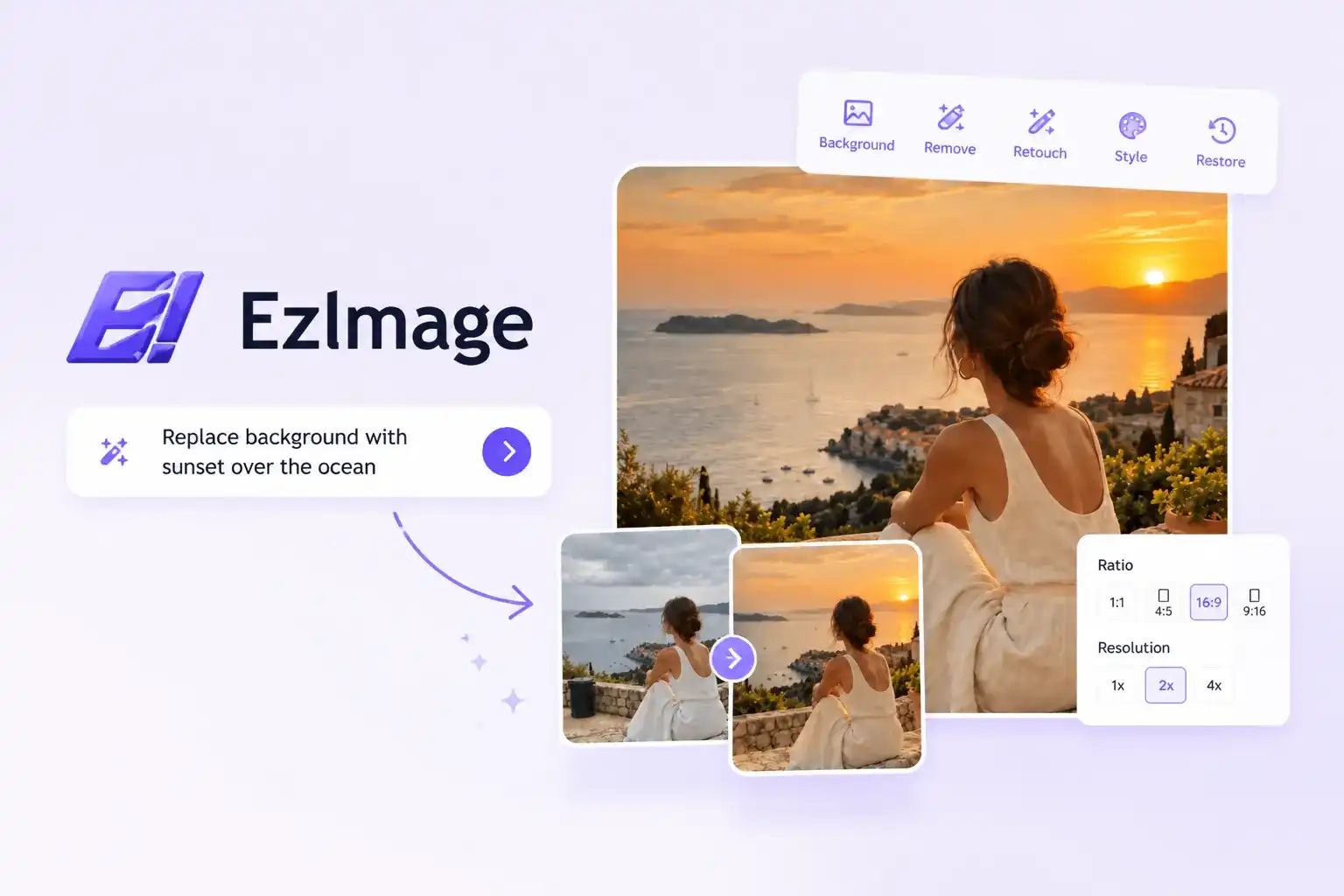
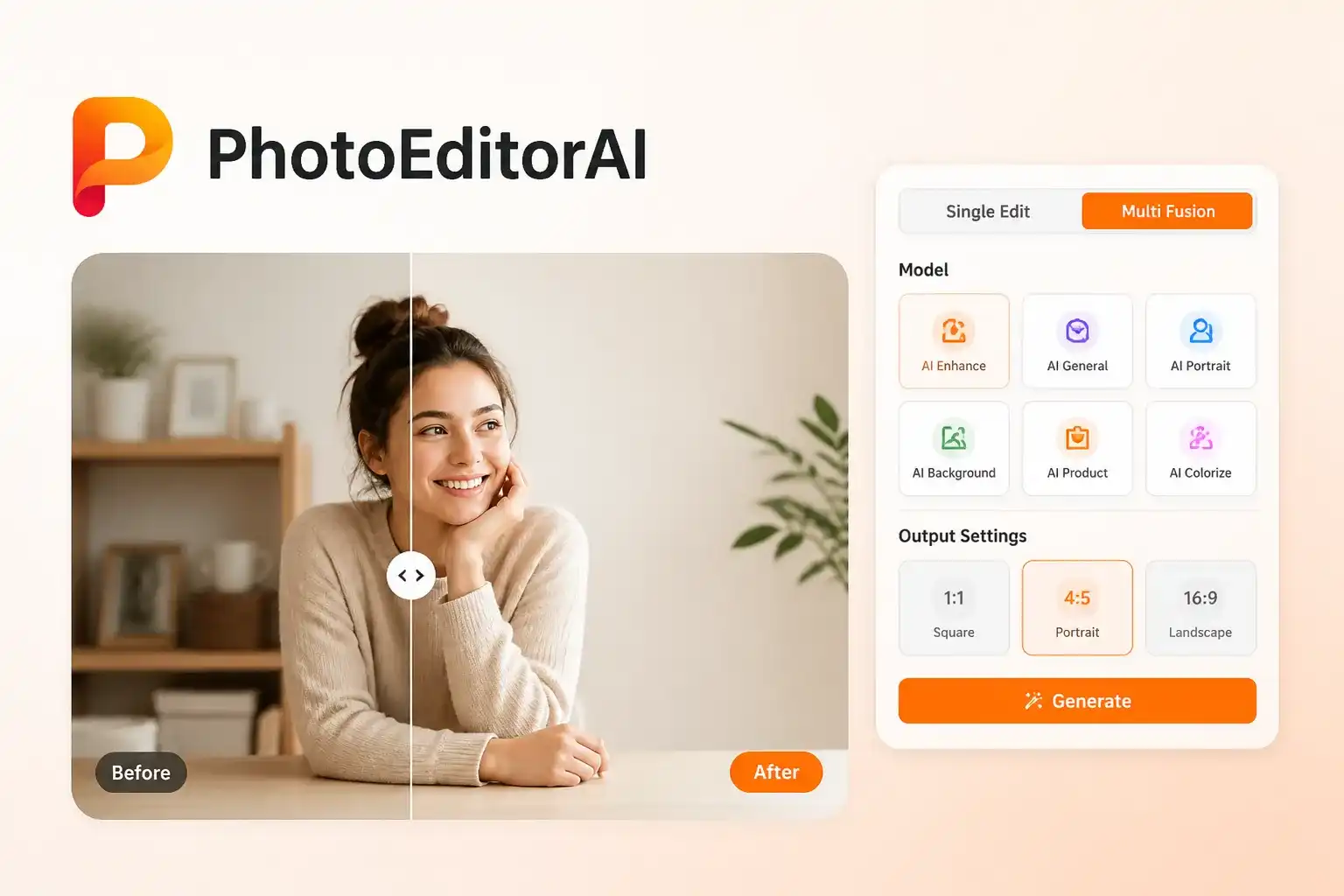
EzImage alternative for everyday photo editing and cleanup

EzImage Alternative for Photo Cleanup and Creative Edits

You may like the person, product, or moment in a photo but need to change something around it. With PhotoEditorAI, describe the specific correction: replace a cluttered table with a plain surface, remove an object behind the subject, or soften harsh lighting. Select an editing model and the available output settings, then generate a version to review against the original. For a different direction, request a new color treatment or illustrated style; when a project needs an entirely new visual, you can also generate an image from a written description.

EzImage alternative for photo cleanup and creative edits

Compare EzImage and PhotoEditorAI for Everyday Photo Editing

PhotoEditorAI covers the common edits people seek from EzImage and adds several model choices for approaching them. Compare the tools by what you want changed, how you want to guide the edit, and the output you need.

Editing capability EzImage PhotoEditorAI
Editing instructions Upload a photo and describe the desired changes. Write what to change and what to retain, then choose the model for the edit.
Model choice The homepage editor presents EzImage 2.0. Select from PhotoEditorAI models and other listed options, including Nano Banana, GPT Image, SeeDream, and Qwen.
Background changes Promotes replacing backgrounds and simplifying scenes. Request a plain backdrop, a different setting, or a less distracting background for the subject.
Object removal Supports requests to erase unwanted objects. Ask to remove a particular item and describe the surface or scene that should remain.
Portrait adjustments Promotes retouching and lighting improvements. Request changes to lighting, background, hair color, or styling while using the portrait as the source.
Creative styling Supports changes to palette, texture, and artistic treatment. Explore a different finish or illustration style with prompt instructions and supported reference inputs.
Input methods The editor displays Single Edit and Multi Fusion modes. Choose Single Edit for one source or Multi Fusion when the task calls for combining image inputs.
Output controls Displays common aspect ratios and 1K, 2K, and 4K resolution choices. Choose from available aspect ratios and resolution options, including 1K, 2K, and 4K, according to the selected model.

What You Can Edit with This EzImage Alternative

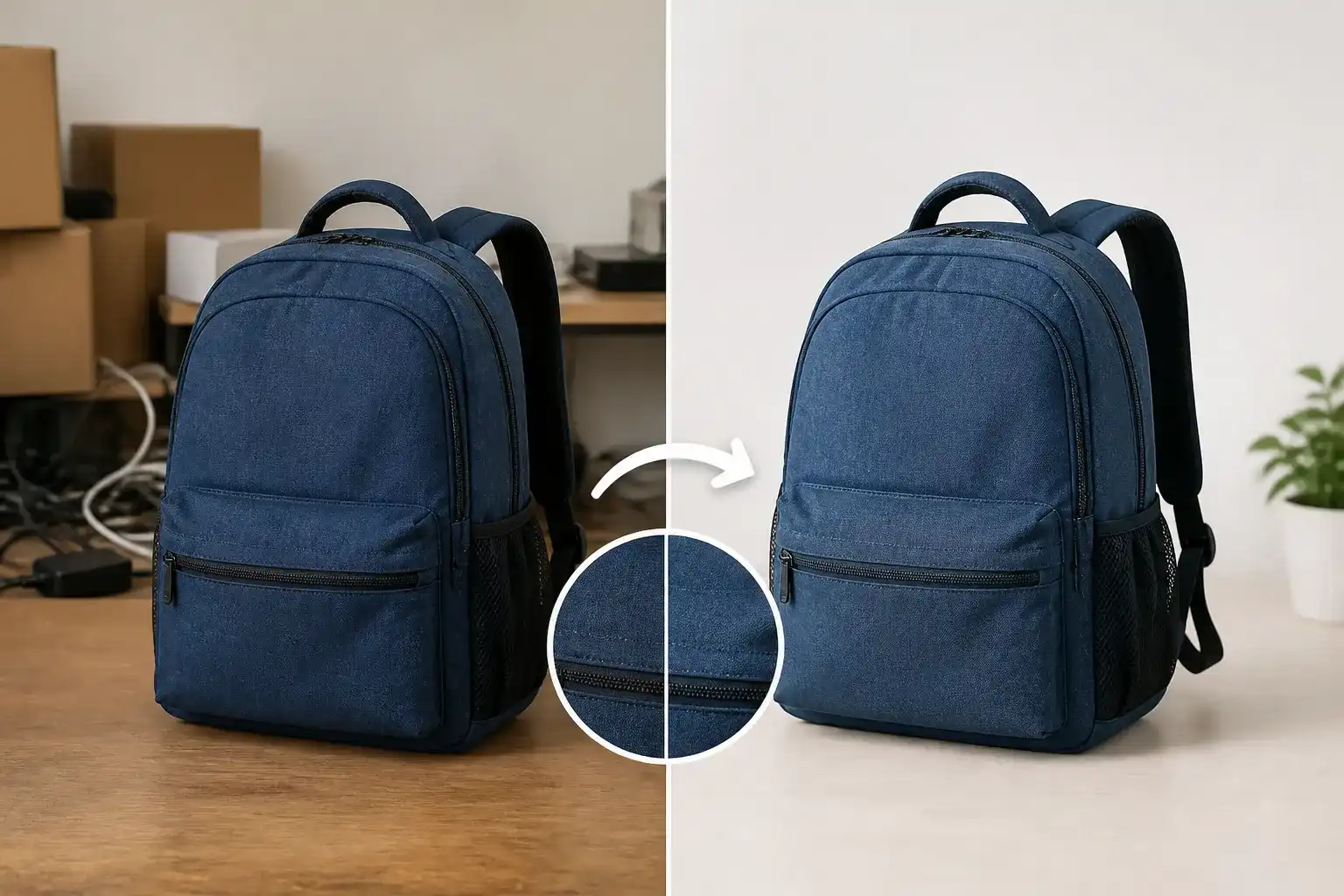
EzImage alternative for cleaning up a secondhand listing photo background

Clean Up a Secondhand Listing Photo

A seller has photographed a backpack at home, but boxes and cables make the listing look untidy. Ask for a simple background that keeps attention on the item, then check that its color, condition, and visible wear still match the product being sold.

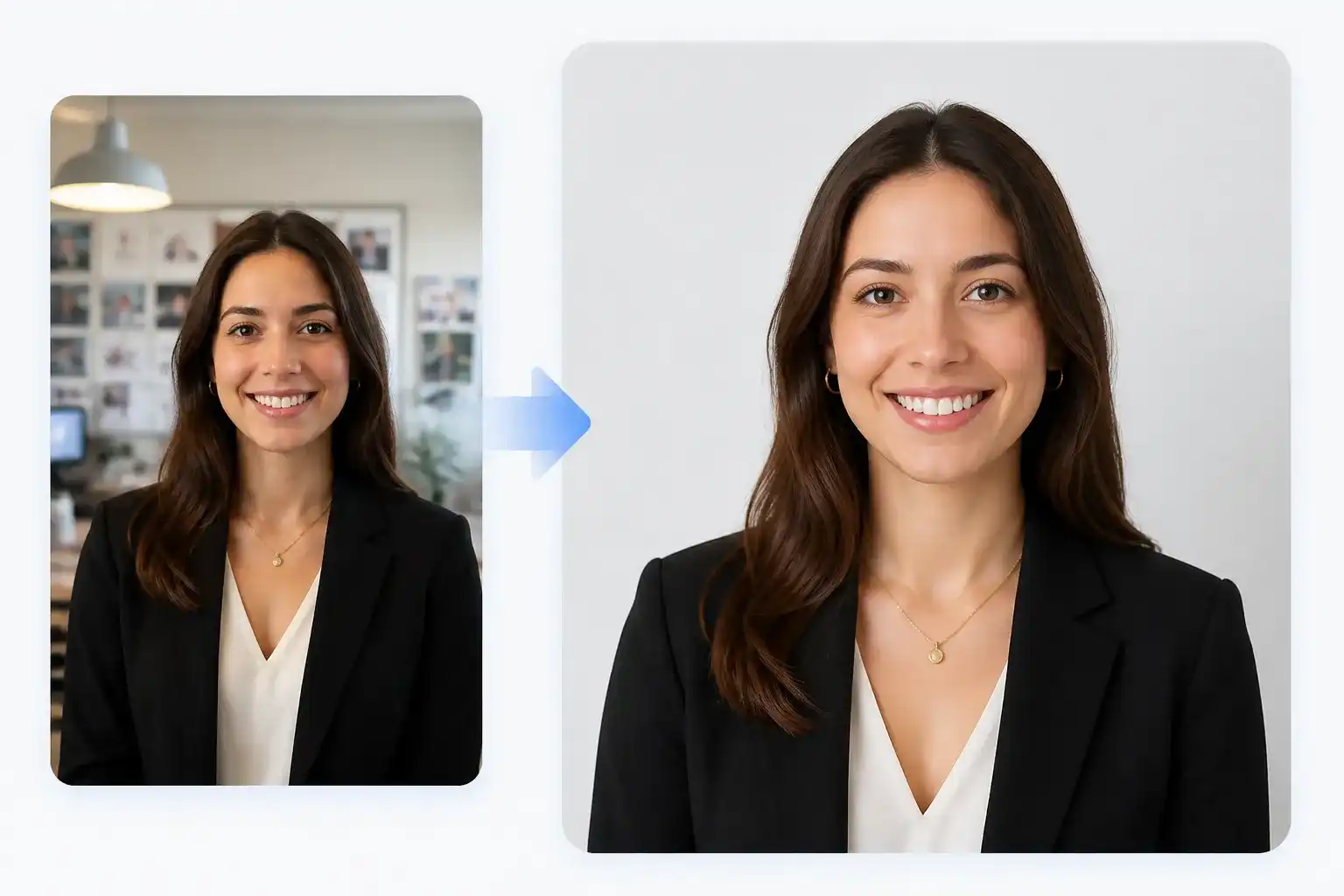
EzImage alternative for updating a company headshot background

Update a Headshot for the Company Website

A new employee has a clear portrait taken against a busy office wall. Request a neutral background and more even lighting, then review the face and hair before choosing the image for the staff page.

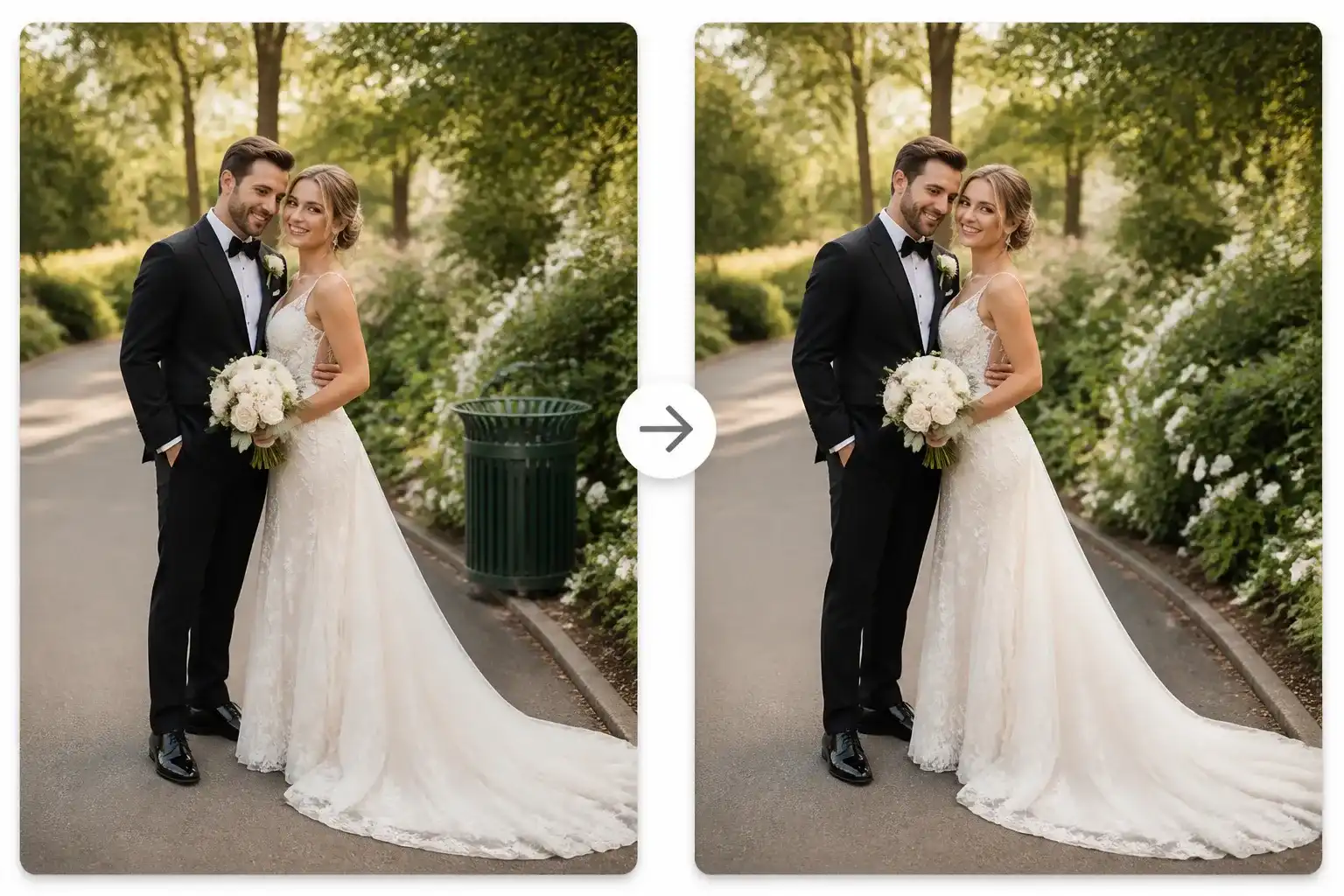
EzImage alternative for removing a distraction from a wedding portrait

Remove a Distraction from a Wedding Portrait

A couple likes their outdoor portrait, but a rubbish bin sits near the edge of the frame. Ask to remove the bin and fill the space with the surrounding path or greenery, then inspect the result before including it in the album.

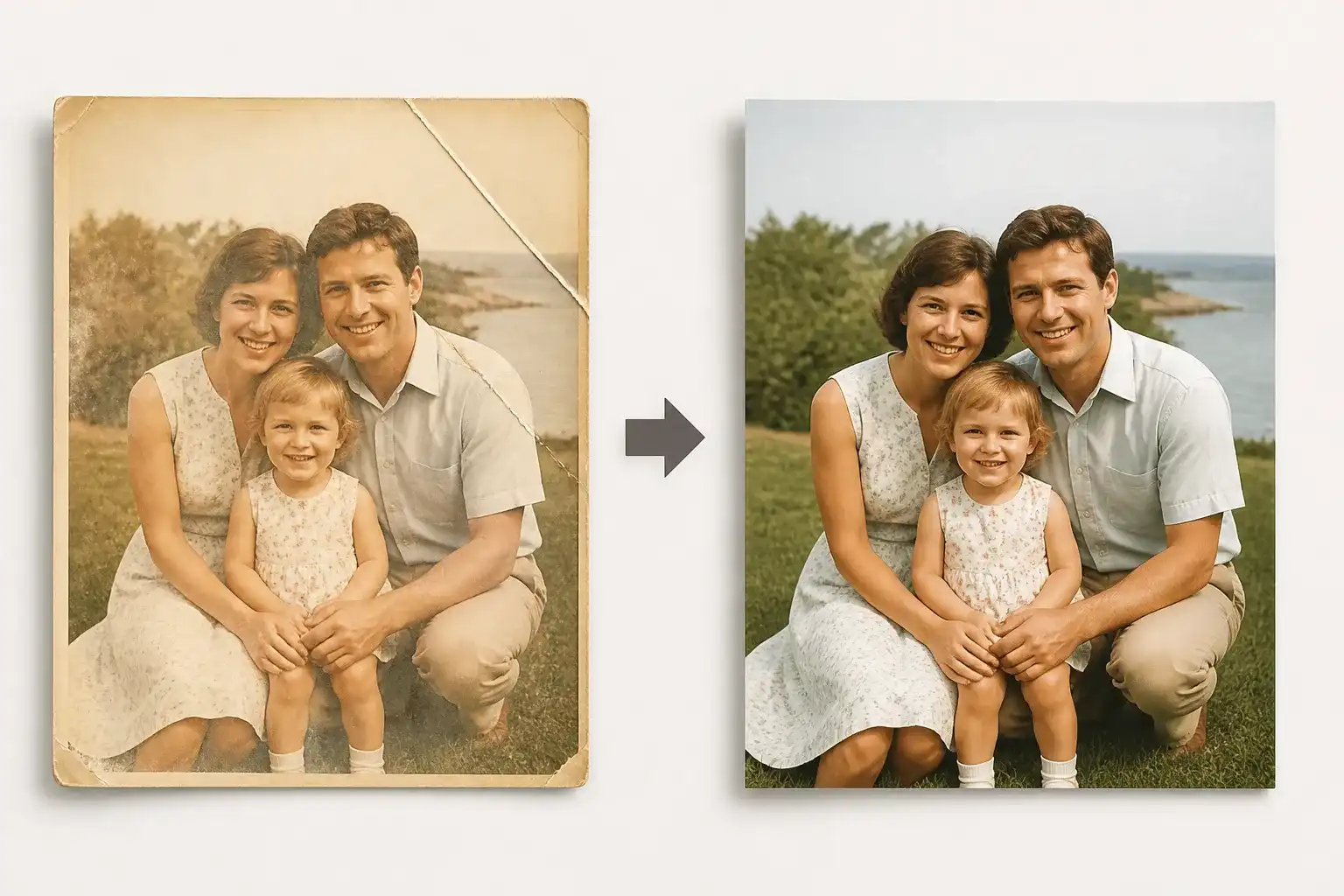
EzImage alternative for restoring a faded family photo print

Restore a Family Print for a Photo Book

A family is making a photo book from old prints, and one scan is faded with a crease across the corner. Request restrained color and contrast correction plus crease cleanup, keeping the people and details of the original in mind during review.

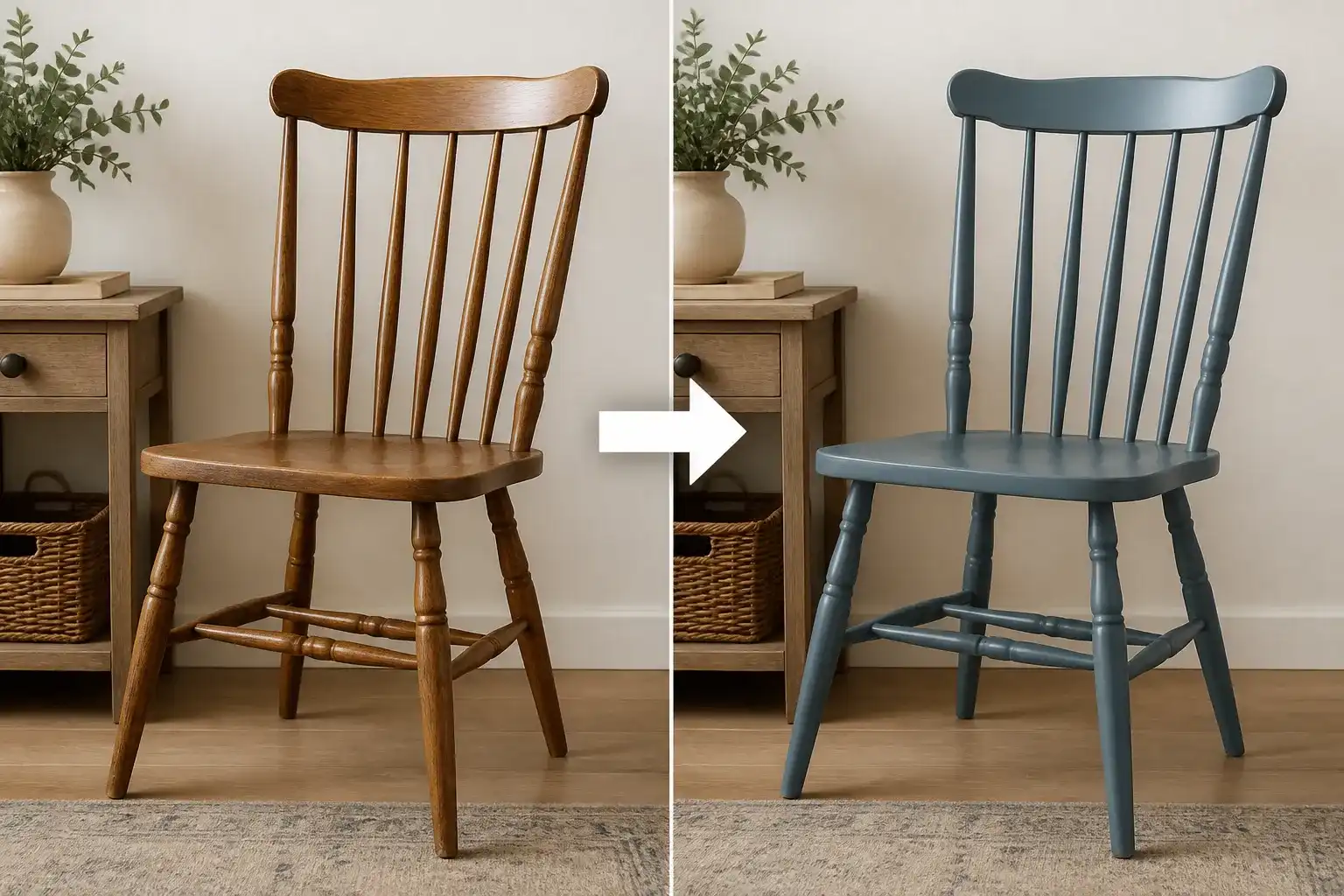
EzImage alternative for previewing a painted furniture finish

Preview a Painted Finish for a Furniture Client

A furniture restorer wants to show how a wooden chair could look in muted blue before the client approves the work. Upload the chair photo and ask to change the painted finish while retaining the shape and surroundings, then use the preview to discuss the color choice.

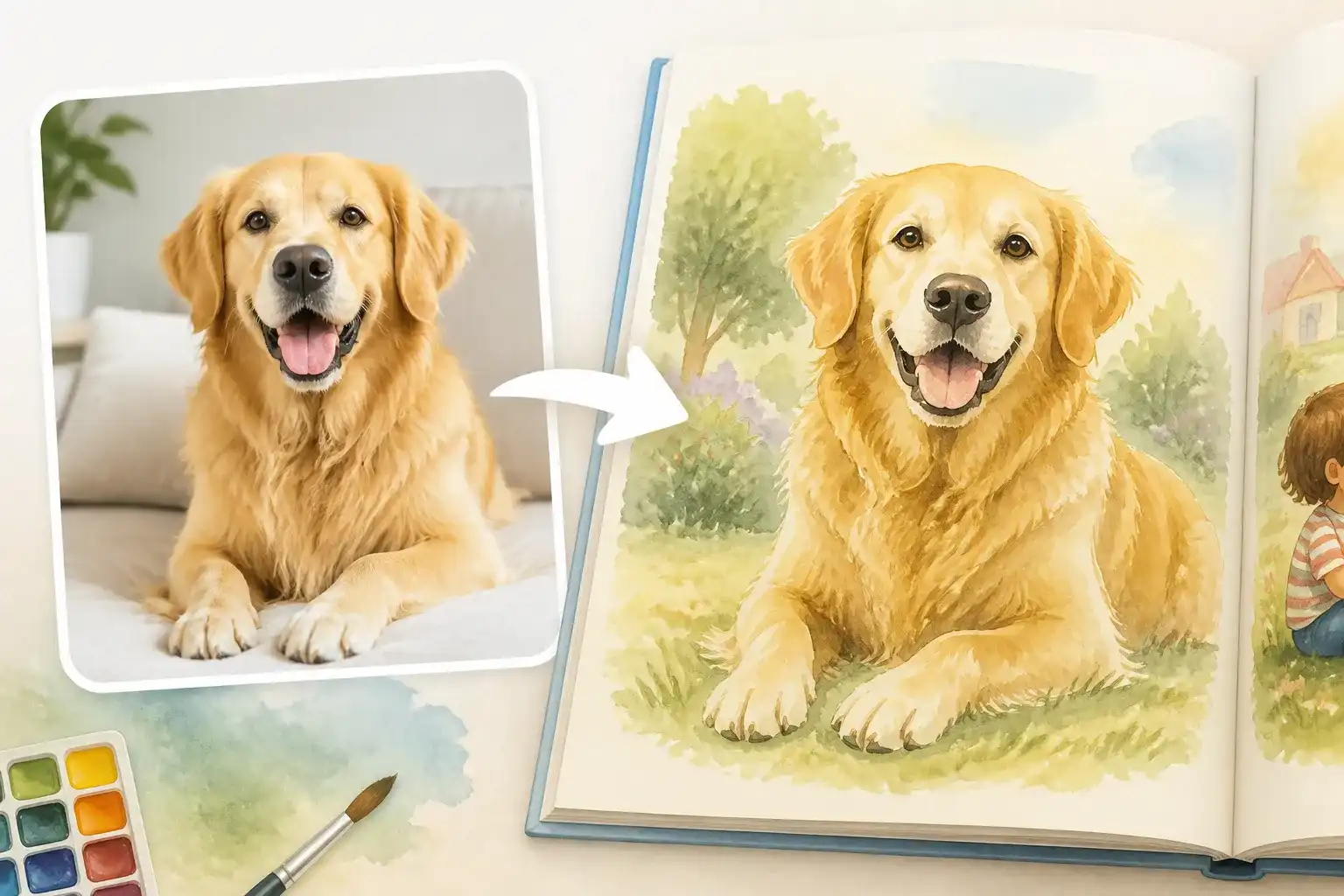
EzImage alternative for turning a pet photo into a storybook illustration

Turn a Pet Photo into a Storybook Illustration

A parent is making a small storybook featuring the family dog. Request a soft watercolor treatment from a favorite photograph, checking the dog's markings and expression before placing the illustration on a page.

Why Choose PhotoEditorAI as Your EzImage Alternative?

Choose the Editing Model for the Job

PhotoEditorAI lists several image models in its editor, giving you options for tasks such as portrait adjustments, object changes, and creative styling. You can try another listed model when an edit needs a different approach.

Explain the Change in Everyday Language

You can request a neutral wall, softer shadows, or the removal of a cable through a text prompt. Start the edit by describing what you want to see, without first building layers or preparing a manual selection.

Handle Cleanup and Restyling in One Editor

The same image workspace supports practical corrections and creative changes. Clean up a background for one photo or request a different color and style for another, without looking for a separate tool for each task.

Give the Edit More Than One Source

When a written description is not enough, Multi Fusion offers a way to work with multiple image inputs. Explain the role of each source so the request has visual guidance for the elements you want to combine.

Select the Format Before Generating

The available aspect-ratio and resolution controls let you request an output suited to a profile picture, listing image, or wider layout. Check the choices for your model before running the edit.

Create Additional Images When You Need Them

An editing project may also need a new illustration or scene that you have not photographed. PhotoEditorAI provides a separate text-to-image workflow on the same website, so you can develop those additional visuals alongside your photo edits.

How to Use PhotoEditorAI as Your EzImage Alternative

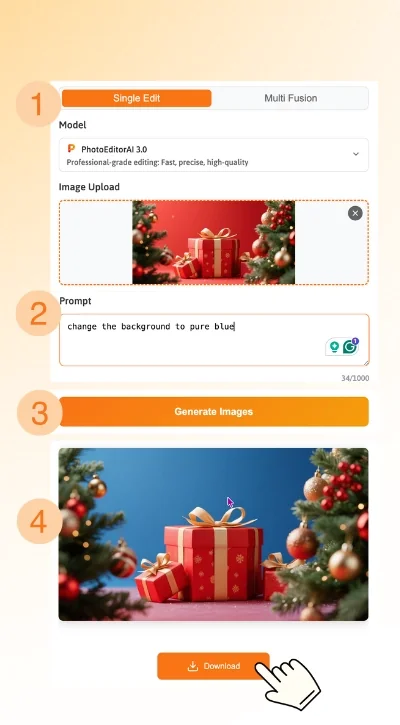
Upload Your Photo to Start Editing

Add the picture you want to change. Use Single Edit for one source or select Multi Fusion for a request that needs multiple images, following the uploader's requirements.

Describe Changes and Choose Your Model

Name the object, background, lighting, or style you want adjusted, and explain what should remain recognizable. Select the editing model and available image dimensions and resolution, then review the displayed credit cost.

Generate Your Edit, Review, and Download

Run the edit and compare the result with your source photo. Refine the instructions or try another model if the change needs work, then download the version you want to use.

Steps to use the EzImage alternative for photo editing

Questions About This EzImage Alternative

Can PhotoEditorAI handle the same everyday edits as EzImage?

PhotoEditorAI supports the main types of edits described on this page: background changes, object removal, portrait adjustments, restoration requests, and creative styling. Its model selector gives you several options for generating and reviewing the edit.

What kinds of changes should I describe in the prompt?

Identify the subject or area, state the change, and mention details you want retained. For example: “Remove the cable behind the desk, fill the gap with the same wall texture, and keep the person and desk in place.”

How do I pick an image editing model?

Read the descriptions beside the model options and choose one suited to the request. Review the preview for the details that matter to you, then try another available model if you want to explore a different result. Access and credit costs can vary.

Which photo formats can I upload?

The editor accepts JPEG, PNG, and WEBP files up to 24 MB. Follow any additional limits shown by the input mode you select, and use a clear source image where possible.

Can I replace the background while keeping the subject?

Yes, you can request a background change using the uploaded image as the source. Describe the new surroundings and specify that the subject should remain recognizable, then inspect edges, hair, and product details in the output.

Can I remove something without changing the whole photo?

You can name the unwanted object and ask for the area to be rebuilt using the surrounding scene. Include what should stay in place. Check the preview because generated edits can also affect details outside the intended area.

Will a portrait keep the person's original appearance?

Use a clear portrait and request limited changes when identity matters. Review facial features, skin texture, hair, and proportions before approving an output; a prompt to preserve those details does not guarantee that every detail will remain unchanged.

Can I improve a damaged or faded family photo?

You can ask for fading, creases, or contrast to be addressed. Work from the best scan available and compare the result with the original, particularly around faces and historical details that should not be invented or altered.

Can I request a square image or a 4K output?

The interface offers aspect-ratio controls including 1:1 and resolution choices up to 4K. Availability depends on the model and settings, and a larger output should still be checked for sharpness and accurate details.

Do all models have the same access and credit requirements?

No. The current selector displays credit rates, and some models are marked as requiring sign-in or an upgrade. Review the status and displayed cost for the model you choose before generating.

What should I check before using an edited image commercially?

Confirm that your rights to the uploaded photos and references cover the intended use. Avoid hateful imagery, sexually explicit material, violence, and illegal content, and inspect the image for misleading details before commercial publication.