Free PixVerse AI Video Generator Online

Use PhotoEditorAI as the PixVerse AI alternative to turn text, images, or references into videos with flexible motion controls in one workspace.

0/20000
No result yet

Your generated images and videos will appear here.

What Is PixVerse?

PixVerse is an AI video creation platform built around text-to-video, image-to-video, animation, video ads, templates, and production workflows. Its product ecosystem also includes model selection, character consistency, lip sync, a marketing hub, Canvas workflows, an API, and tools for interactive experiences. PhotoEditorAI targets a similar search intent while giving users a practical browser-based workflow for testing different video directions. You can start with a prompt, an image, a first and last frame, or several reference images, then choose a model and adjust the output before generating.
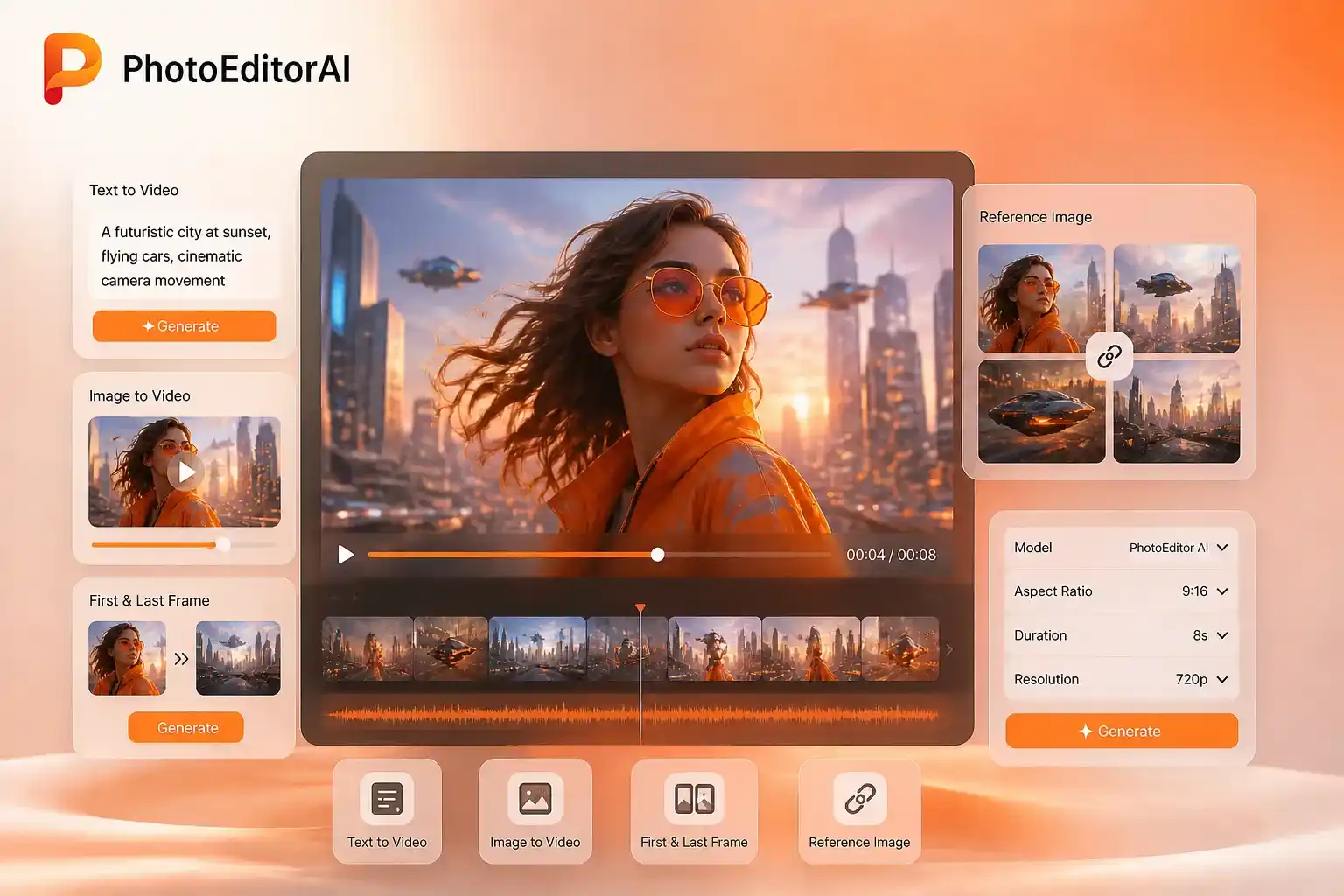
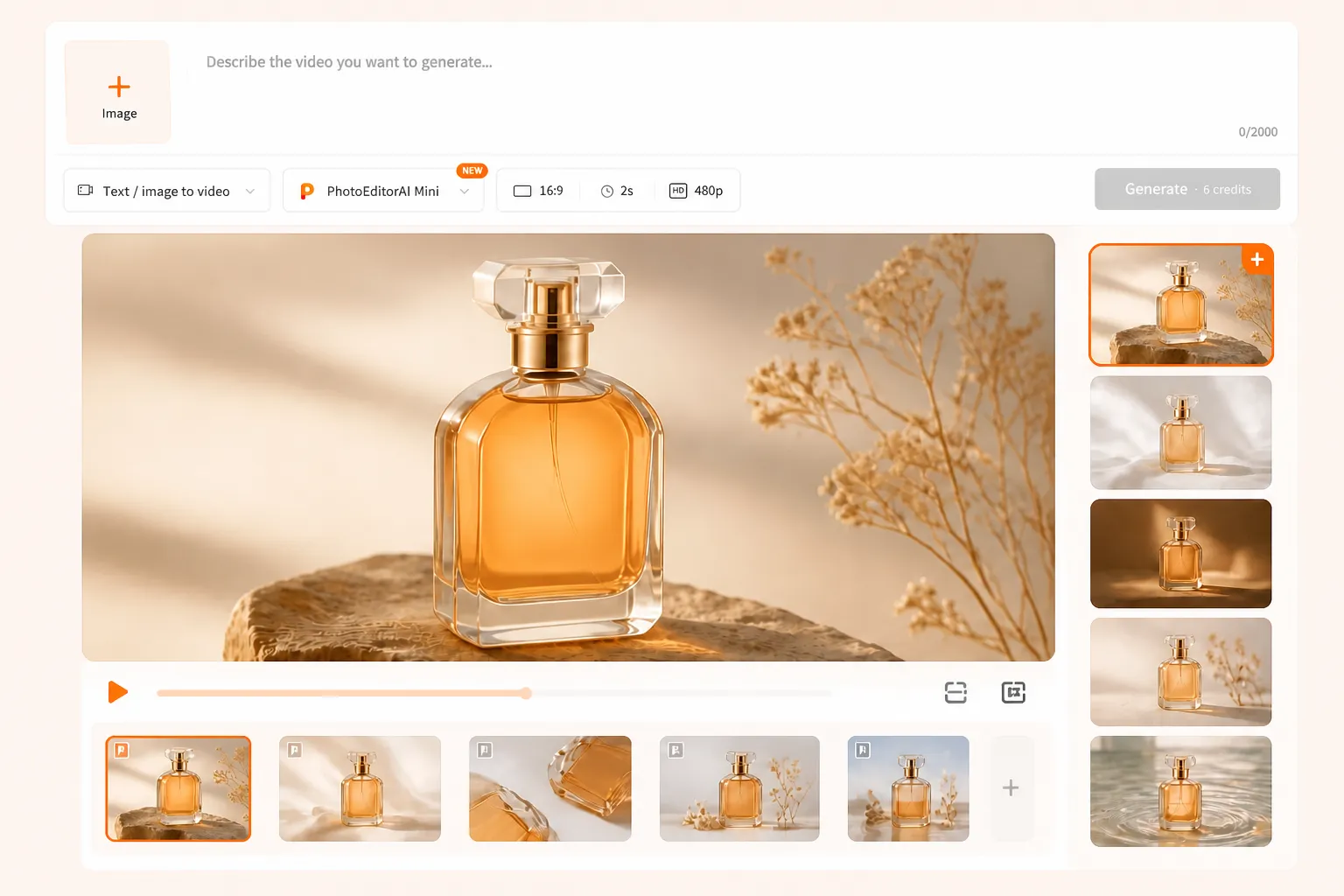
PixVerse AI video generator interface

PixVerse AI Alternative for Text-to-Video and Image-to-Video

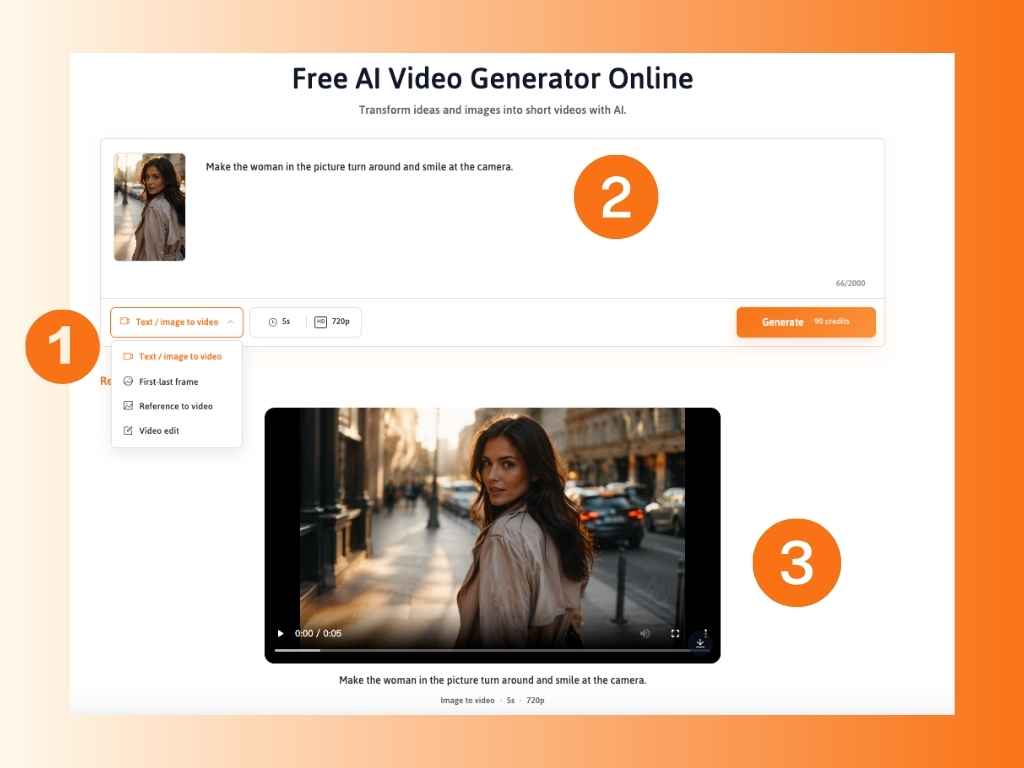
A useful PixVerse alternative should help you move from a rough idea to a reviewable video draft without forcing every project into the same input format. With PhotoEditorAI, you can describe a scene, animate a still image, guide a transition with first and last frames, or use reference images to keep a visual direction consistent. If you need an original visual to start with, the AI Image Generator lets you create images from text prompts before turning them into video content. The workflow also supports practical production choices such as aspect ratio, duration, resolution, and model selection, making it easier to prepare a vertical social clip, a product teaser, a storyboard test, or a short ad concept from the same starting workspace.

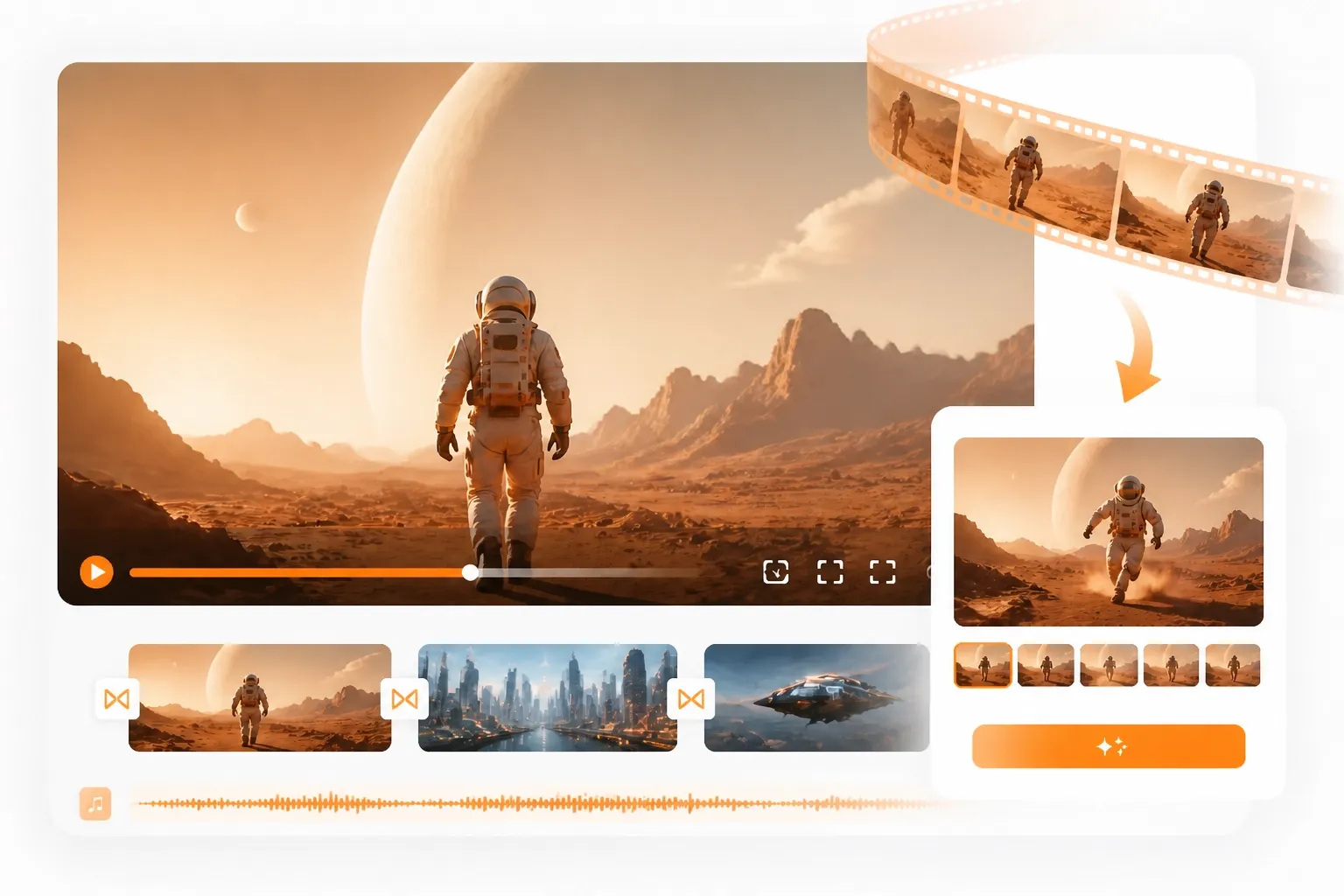
PhotoEditorAI workflow for creating videos from prompts and images

Compare PixVerse and PhotoEditorAI for Your Next Video

If you are comparing PixVerse with another AI video workflow, use the starting asset, the amount of motion control, and the final publishing channel as your decision points.

Comparison item PixVerse PhotoEditorAI
Core focus AI video generation and production, with model, marketing, developer, and interactive-world workflows. Online text/image-to-video and image editing workflows in one browser workspace.
Typical starting point A text prompt, image, template, model, or production workflow. A text description, source image, first/last frame, or up to five reference images.
Common users Creators, marketers, studios, developers, and teams building video experiences. Creators, marketers, product teams, and solo builders testing video and image directions.
Main workflow style Explore models and production tools, then direct a video or campaign workflow. Choose a video mode and model, add a prompt or source asset, set output controls, and generate.
Motion guidance Depends on the selected PixVerse mode, model, template, or production tool. Text/image-to-video, first-last frame, reference-to-video, and video-edit modes are available in the generator UI.
Output controls Vary by model and product workflow. Aspect ratio, duration, and resolution controls are shown before generation, including 480p, 720p, and 1080p options.
Best-fit projects Cinematic clips, AI video ads, animation, interactive experiences, and larger production workflows. Fast drafts for products, ads, social posts, storyboards, portraits, and image-led video experiments.
Model choice PixVerse model and ecosystem selection. Multiple video models are listed so users can compare motion, style, speed, and credit use for the task.

What You Can Create with This PixVerse AI Alternative

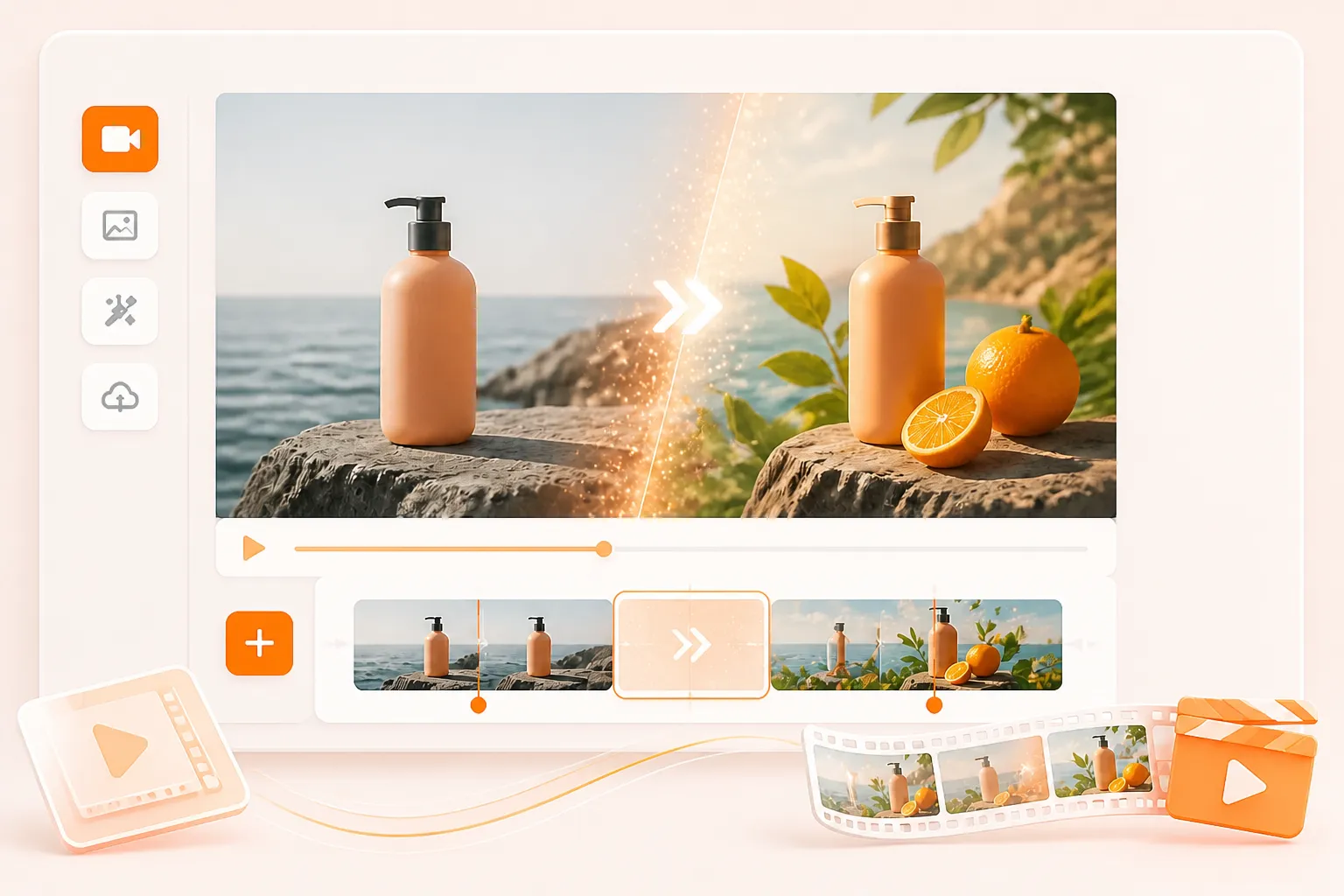
AI video draft from a product image

A Product Image Needs Motion Before the Ad Goes Live

Upload a product photo and describe the camera move, lighting, and setting you want to test. Generate a short product teaser for a landing page, paid ad, marketplace listing, or social post before committing to a full shoot.

Storyboard concept turned into an AI video

A Storyboard Needs a Moving Proof of Concept

Start with a prompt or a still frame and describe the subject, action, lens, and mood. A creative team can turn a written idea into short visual beats that make pacing and scene direction easier to review.

Vertical social video variations

Social Content Needs Vertical Variations

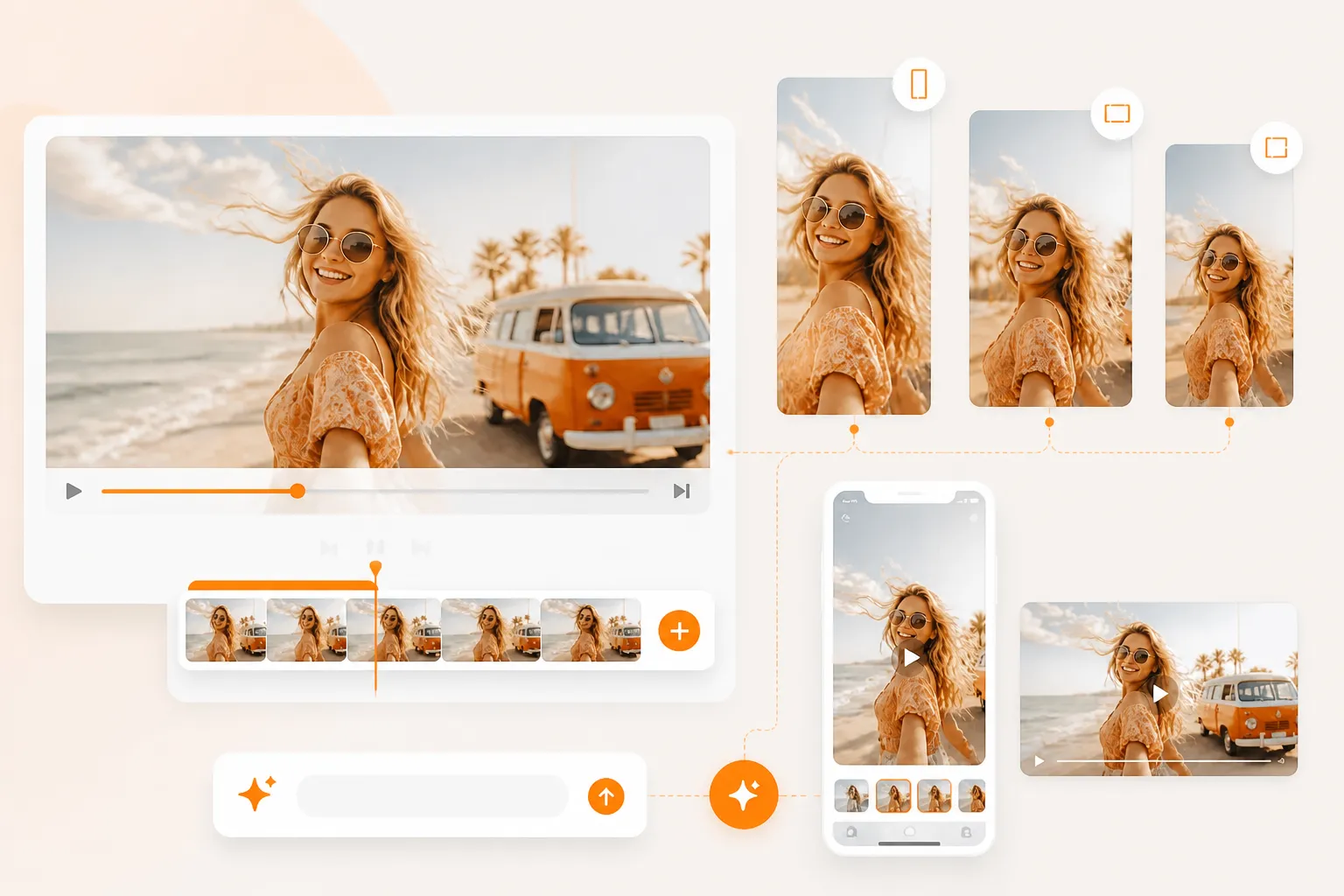
Choose a vertical output ratio and create alternate versions of the same idea for short-form feeds, stories, and mobile previews. This helps a creator compare hooks and motion treatments before finalizing the post.

Reference-guided AI video variations

A Character or Product Must Stay Recognizable Across Shots

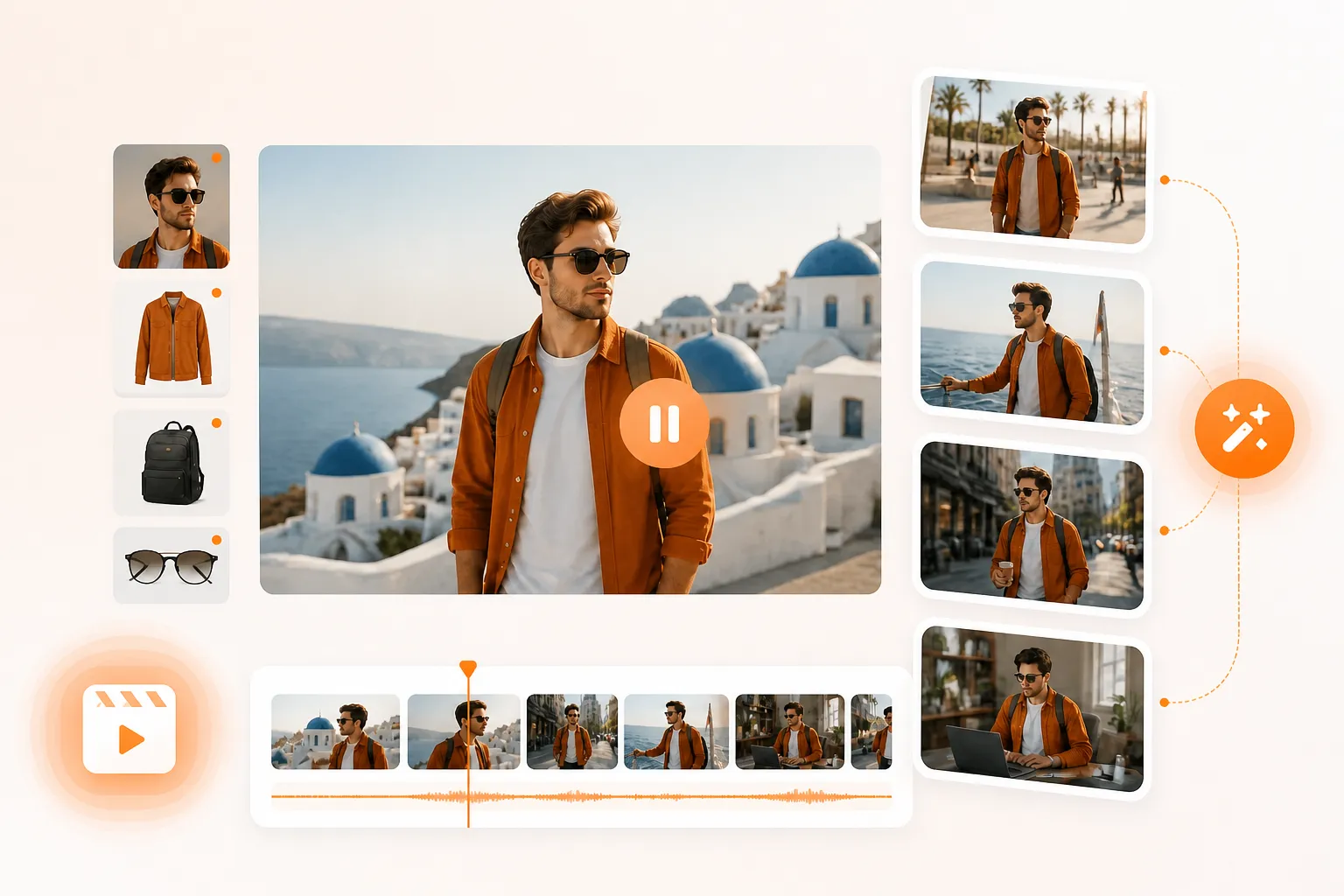
Add reference images and explain which details should remain consistent, such as a person, package, color palette, or key prop. Use the generated clips as a controlled way to explore new actions and environments around the same visual anchor.

AI video transition between two key frames

Two Key Frames Need a Smooth Transition

When a scene must move from one visual state to another, use a first and last frame workflow and describe the transition between them. This is useful for reveal shots, before-and-after concepts, product transformations, and storyboard tests.

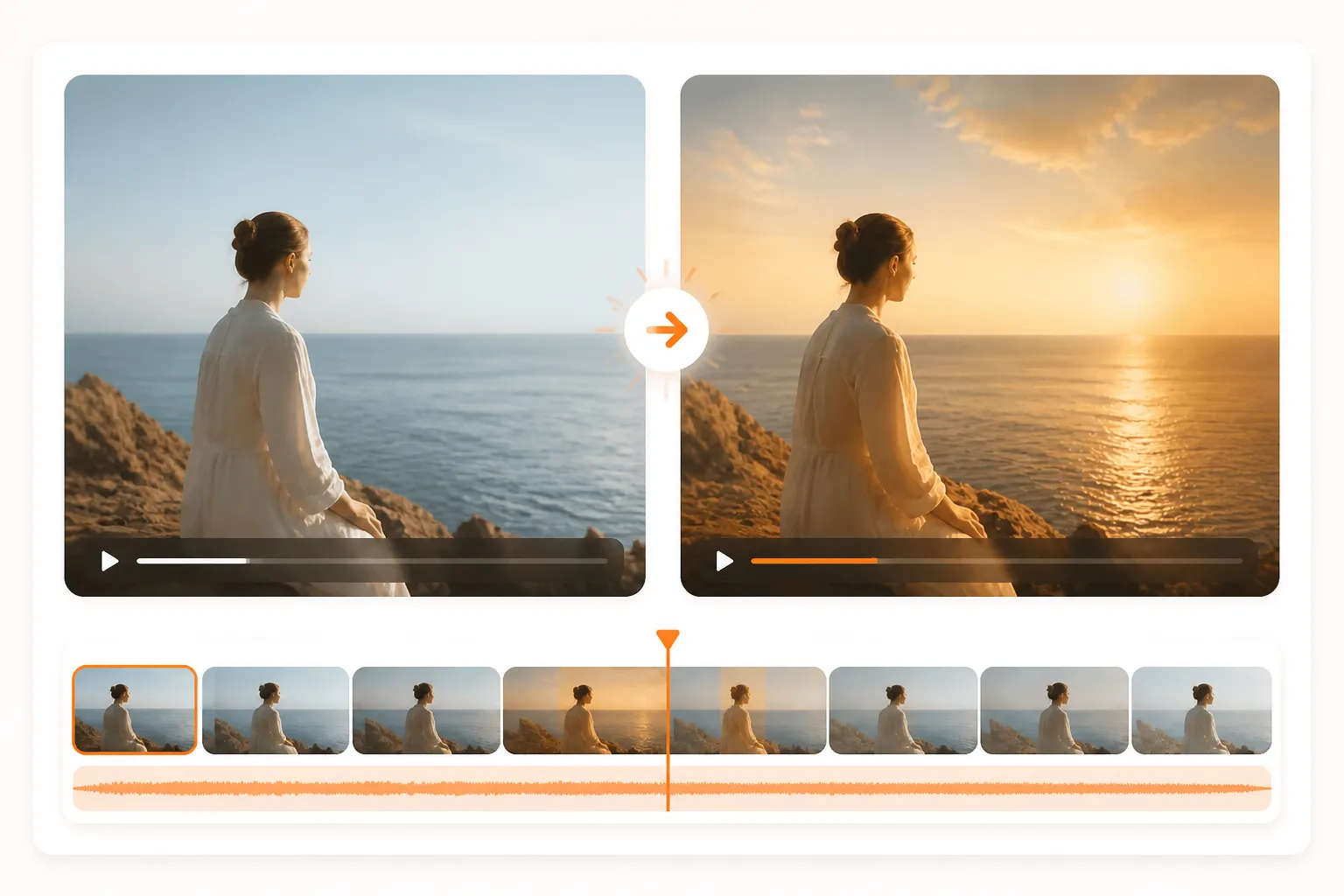
Existing video edited with AI

An Existing Clip Needs a New Direction

Use a video-edit workflow when the source clip is close but needs a different visual treatment. Describe the change you want to explore, review the result, and keep the iteration focused on the original footage instead of rebuilding the concept from scratch.

Why Try PhotoEditorAI as a PixVerse AI Alternative

Start with the Asset You Already Have

A project does not need to begin from a blank prompt. Use a product image, portrait, first/last frame, existing video, or a small set of reference images as the starting point for the next draft.

Choose a Motion Workflow That Matches the Brief

Text-to-video is useful for a new scene, image-to-video adds movement to a still, first-last frame guides a transition, and reference-to-video helps keep a visual direction in view. The mode can follow the task instead of forcing every idea through one workflow.

Set the Publishing Shape Before You Generate

Choose an aspect ratio, duration, and resolution before generation so the first draft is closer to its destination. Vertical clips, square previews, and landscape product videos can be planned for their final channel earlier in the process.

Compare Models While the Idea Is Still Flexible

Different video models can produce different motion, detail, speed, and credit usage. Keeping several model choices in the same generator makes it easier to test a direction before locking the project to one production approach.

Keep Image and Video Exploration Together

A campaign often needs both a still image and a short clip. PhotoEditorAI places image generation/editing and video generation in the same workspace, so a product or concept can move between formats without changing tools.

Turn Rough Directions into Shareable Review Drafts

A marketer, designer, or founder can create a quick visual sample from a prompt and reference asset, then use it to discuss framing, movement, and message before spending time on a larger production.

How to Use PhotoEditorAI as a PixVerse AI Alternative

Choose a Creation Mode and Add Your Input

Choose a mode and add your input. Select image-to-video, text-to-video, or reference-to-video. Upload a first-frame image, an optional end frame, a reference image or video, or write the scene you want to create.

Write Your Prompt and Adjust Video Settings

Write the prompt and set the video parameters. Describe the subject, action, camera movement, speed, atmosphere, and visual style. Choose a model, aspect ratio, duration, and resolution based on the output you need and the credits you want to spend.

Generate, Review, and Refine the Video

Generate, preview, and refine. Create the clip, review the motion and consistency, then adjust the prompt, input, model, or settings when needed. When the result fits the concept, download the video for your project.

Steps for creating a video with PhotoEditorAI

FAQ About This PixVerse AI Alternative

What is a PixVerse AI alternative?

A PixVerse AI alternative is another workflow for creating or editing AI-generated videos from prompts, images, frames, or references. PhotoEditorAI provides text/image-to-video, first-last frame, reference-to-video, and video-edit modes in an online generator.

How does this PixVerse alternative work?

Choose a video mode and model, add a prompt or source asset, set the output controls, and generate a clip. You can review the result and adjust the prompt, model, references, aspect ratio, duration, or resolution for another pass.

Can I use this PixVerse AI alternative for image-to-video?

Yes. Upload a source image, describe the movement and camera direction, and generate a video draft from the still image. JPG, PNG, and WEBP inputs are shown in the generator, with up to five reference images supported in the reference workflow.

Can I create a video between two frames?

Yes. The first-last frame mode is designed for a starting frame and an ending frame with a description of the transition between them. It can help with reveal shots, transformations, and storyboard tests.

Can I use reference images to guide the video?

Yes. Add reference images and describe the subject, action, setting, and visual details you want the generated clip to follow. The generator shows support for up to five reference images, with a 24 MB per-image limit.

Can I make vertical videos for social media?

Yes. The generator shows vertical and landscape aspect-ratio options, including 9:16 and 16:9. Choose the ratio that matches the feed, story, ad placement, or preview where you plan to use the clip.

Can I choose the video resolution and duration?

The generator shows duration options from short clips through longer outputs and resolution options including 480p, 720p, and 1080p. Exact availability can vary by the selected mode, model, and current product limits.

Can I edit an existing video with this PixVerse alternative?

A video-edit mode is shown in the PhotoEditorAI workflow. Start with an existing clip, describe the visual change you want to explore, and review the generated result before downloading or iterating again.

Is this page a direct copy of PixVerse?

No. This page positions PhotoEditorAI as an alternative for people comparing AI video workflows. It explains PhotoEditorAI's own input modes, model selection, output controls, and image/video workspace.

What should I include in an AI video prompt?

Describe the subject, action, camera movement, setting, lighting, style, pacing, and the final aspect ratio when it matters. For image-to-video, also explain which parts of the source image should stay recognizable and what should move.

Can I use generated videos commercially?

Before using generated videos commercially, make sure you own the rights to or have permission to use all original materials. Do not create videos involving violence, explicit sexual content, illegal activities, or other harmful or prohibited content.