Free Pollo AI Video Generator Alternative Online

Use PhotoEditorAI as the Pollo AI alternative to turn prompts, images, or visual references into videos with your choice of model, motion direction, and output settings.

0/20000
No result yet

Your generated images and videos will appear here.

What Is Pollo AI?

Pollo AI is an online AI creation platform known for bringing multiple video models, text-to-video, image-to-video, creative effects, and image tools into one service. It appeals to creators who want to explore different ways of turning an idea or existing image into a clip. PhotoEditorAI offers another place to develop those visuals, with image editing and video creation, model selection, reference guidance, and settings for the output you want to make.
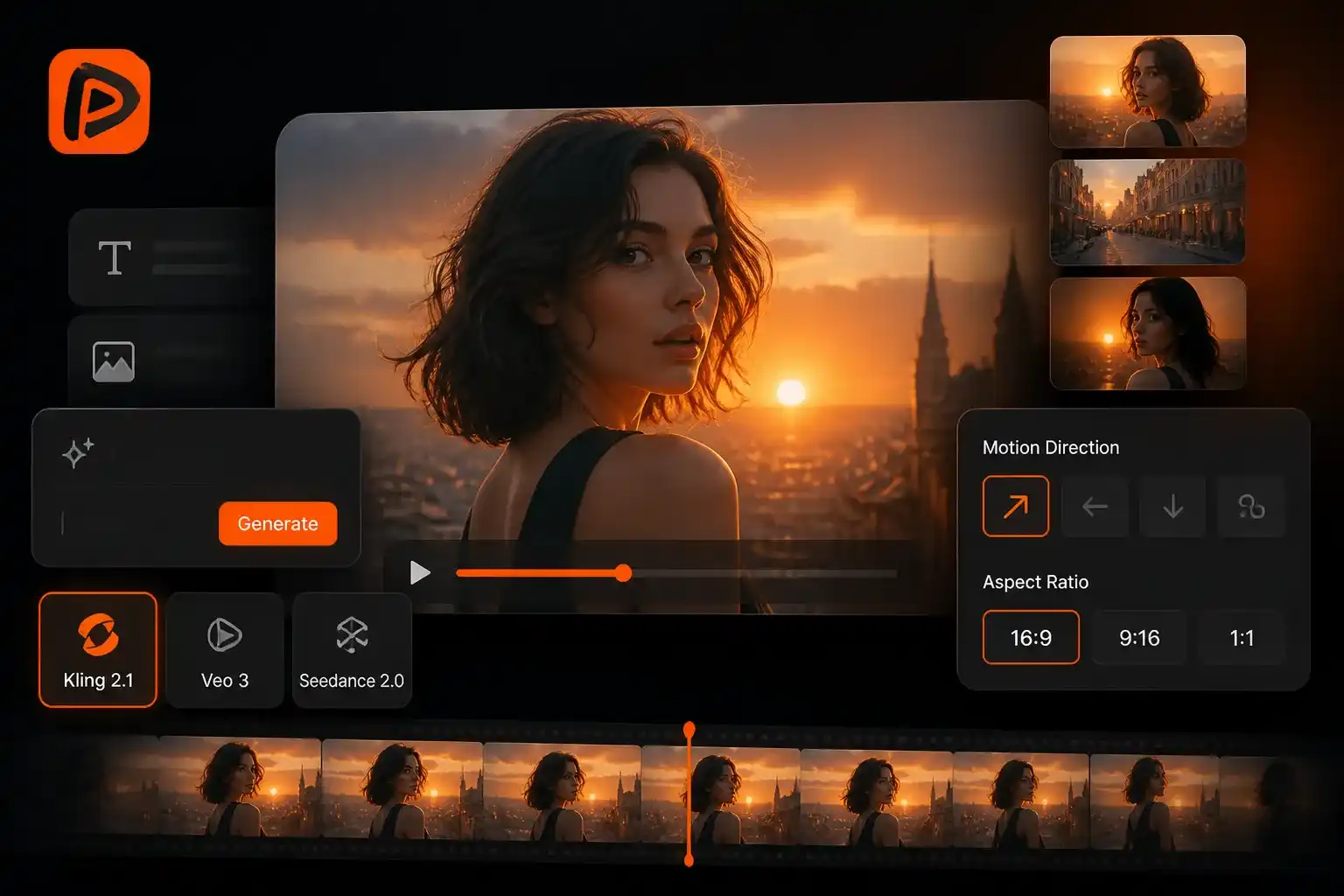
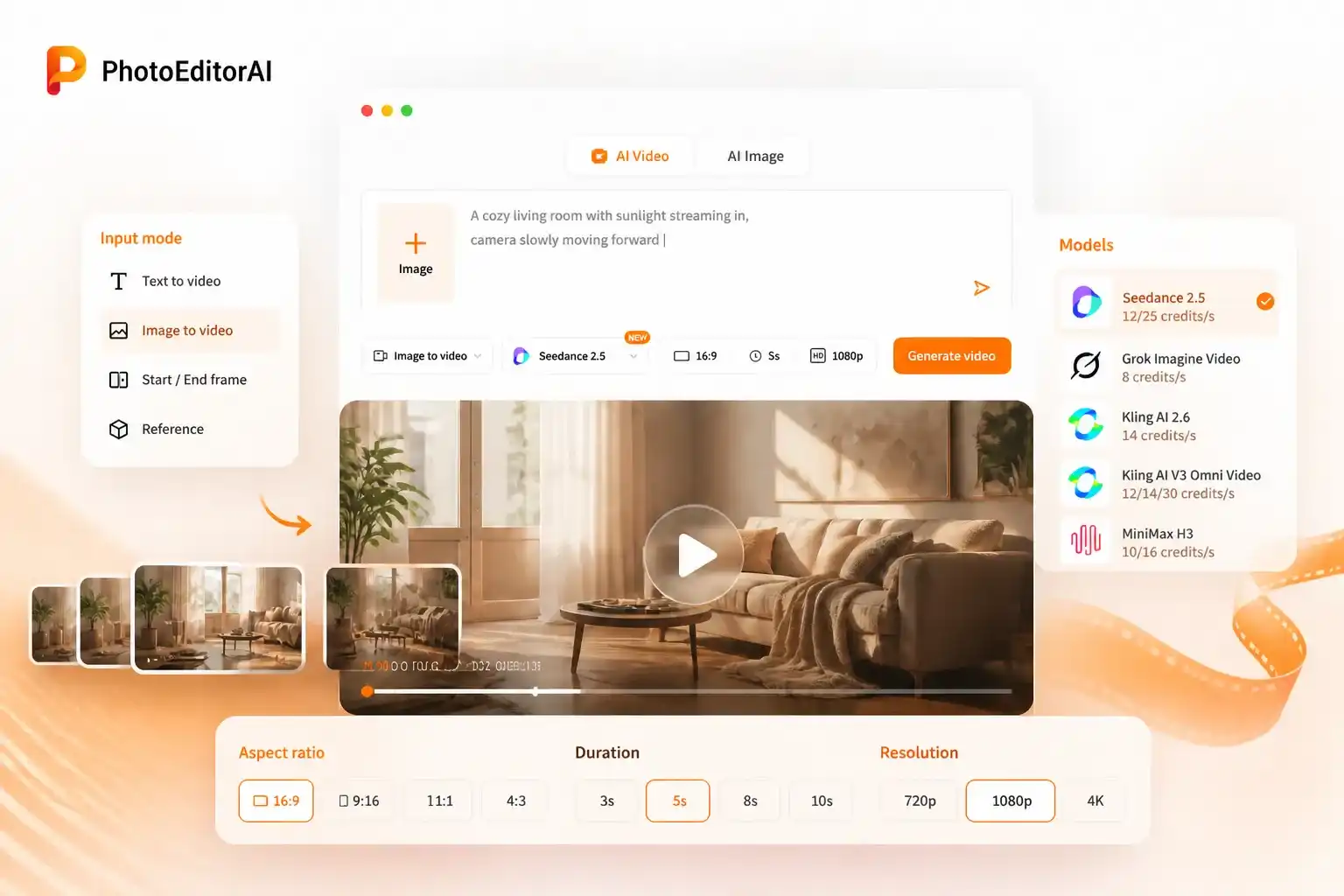
Pollo AI alternative for AI video creation with model selection

Pollo AI Alternative for Exploring Models and Directing Motion

The right model for an animated illustration may produce a different result on a realistic product shot. With PhotoEditorAI, choose the input mode and model for the task, then describe the action, camera movement, and atmosphere you want to explore. You can work from text, animate an image, guide a transition with opening and ending frames, or add visual references. If the source needs a different background or composition, edit the image first before uploading it for video generation, then set the available aspect ratio, duration, and resolution for the clip.

PhotoEditorAI workflow for choosing a video mode and directing motion

Compare Pollo AI and PhotoEditorAI for Your Video Workflow

Both services address AI video creation. When choosing between them, consider the models you want to try, the source material you have, and how you prefer to direct and review each generation.

Comparison item Pollo AI PhotoEditorAI
Platform focus AI creation platform combining video models and creative tools. Image generation and editing alongside video creation in an online workspace.
Model exploration Known for bringing multiple AI video models into one platform. A video model selector provides descriptions and credit rates to help you choose a generation option.
Starting from an idea Text-to-video creation starts from a written description. Write a scene prompt, choose the model, and set the available output options before generating.
Starting from a still Image-to-video creation adds motion to an uploaded image. Upload a source image and describe the subject's action and camera movement.
Creative direction Offers video generation and creative effects for different visual concepts. Use prompts, visual references, or first and last frames to guide the selected video mode.
Image preparation Image tools are part of the wider platform offering. Develop the source visual in the image workspace, then save and upload it to a video workflow.
Output planning Check the settings available for the chosen tool and model. Choose the available aspect ratio, duration, and resolution for the selected model and mode.
Reviewing options Evaluate the model and tool outputs against your creative brief. Adjust the source, instructions, or model to explore another version of the same shot.

Video Ideas to Explore with This Pollo AI Alternative

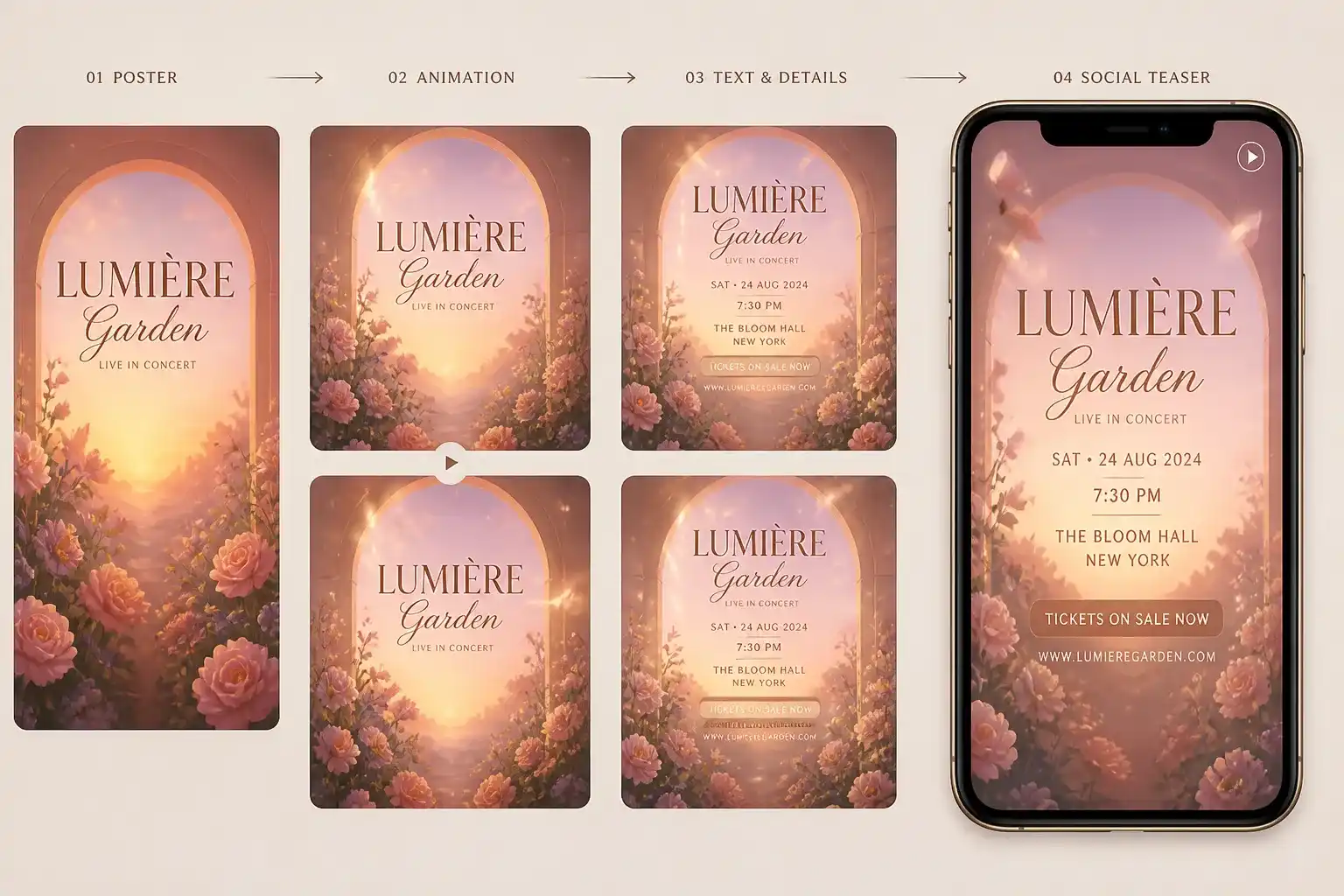
Pollo AI alternative for turning an event poster into a social video teaser

Turn an Event Poster into a Social Teaser

An event organizer has a finished poster and needs a short clip to announce ticket sales. Upload the artwork and describe subtle movement in the lights or background, then add the event details and booking link during editing for a social teaser.

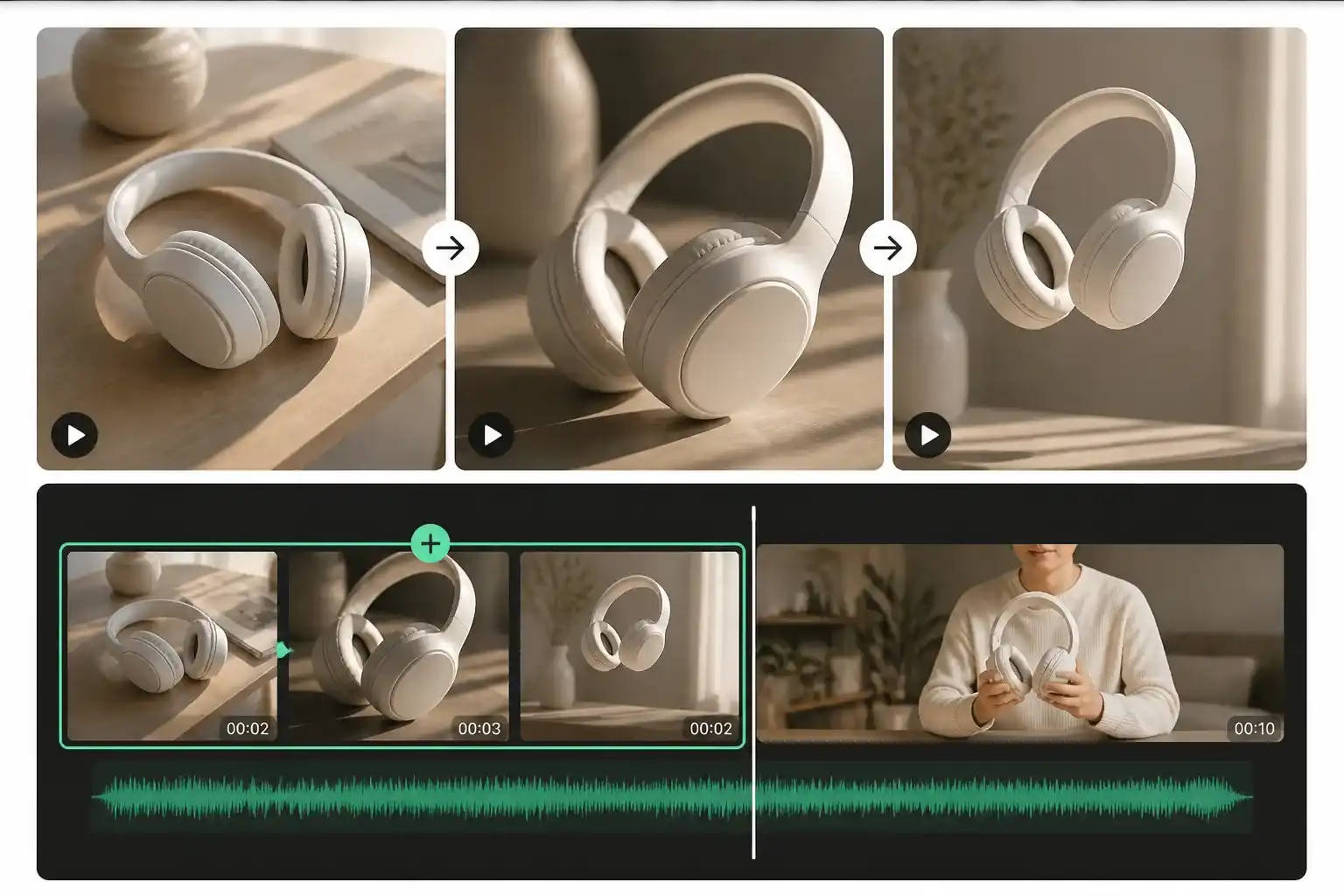
Pollo AI alternative for creating an opening shot for a product demo

Give a Product Demo a Clear Opening Shot

A shop owner has recorded a product demonstration but needs a stronger introduction. Start from the product photograph and request a close camera approach or controlled light change, then select a clip to place before the existing demonstration footage.

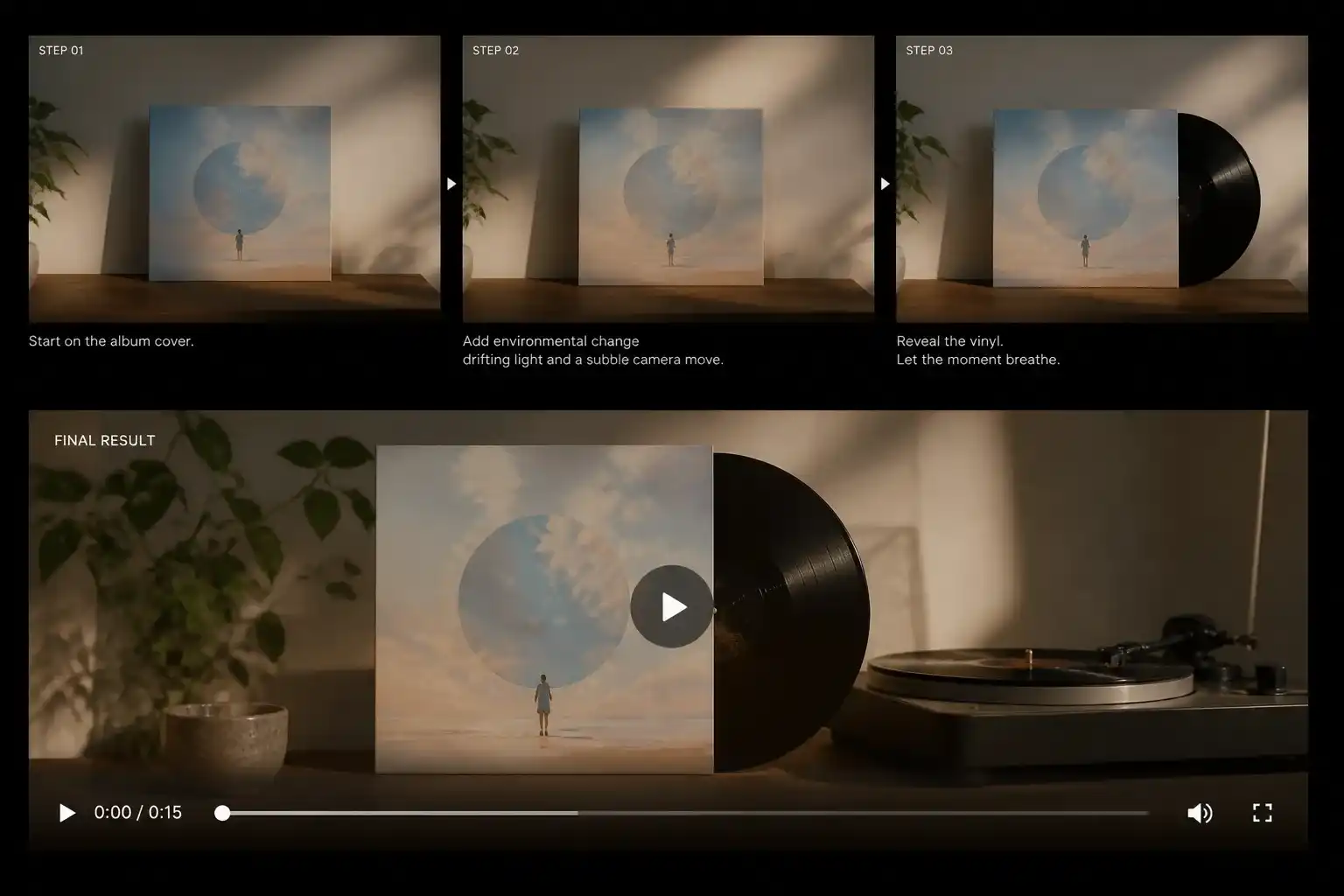
Pollo AI alternative for animating album cover artwork for a release post

Bring an Album Cover into a Release Announcement

A musician has finished cover artwork and wants a moving visual for the release post. Describe a small environmental change, drifting light, or a gentle camera move that fits the artwork, then review the result alongside the track in the final edit.

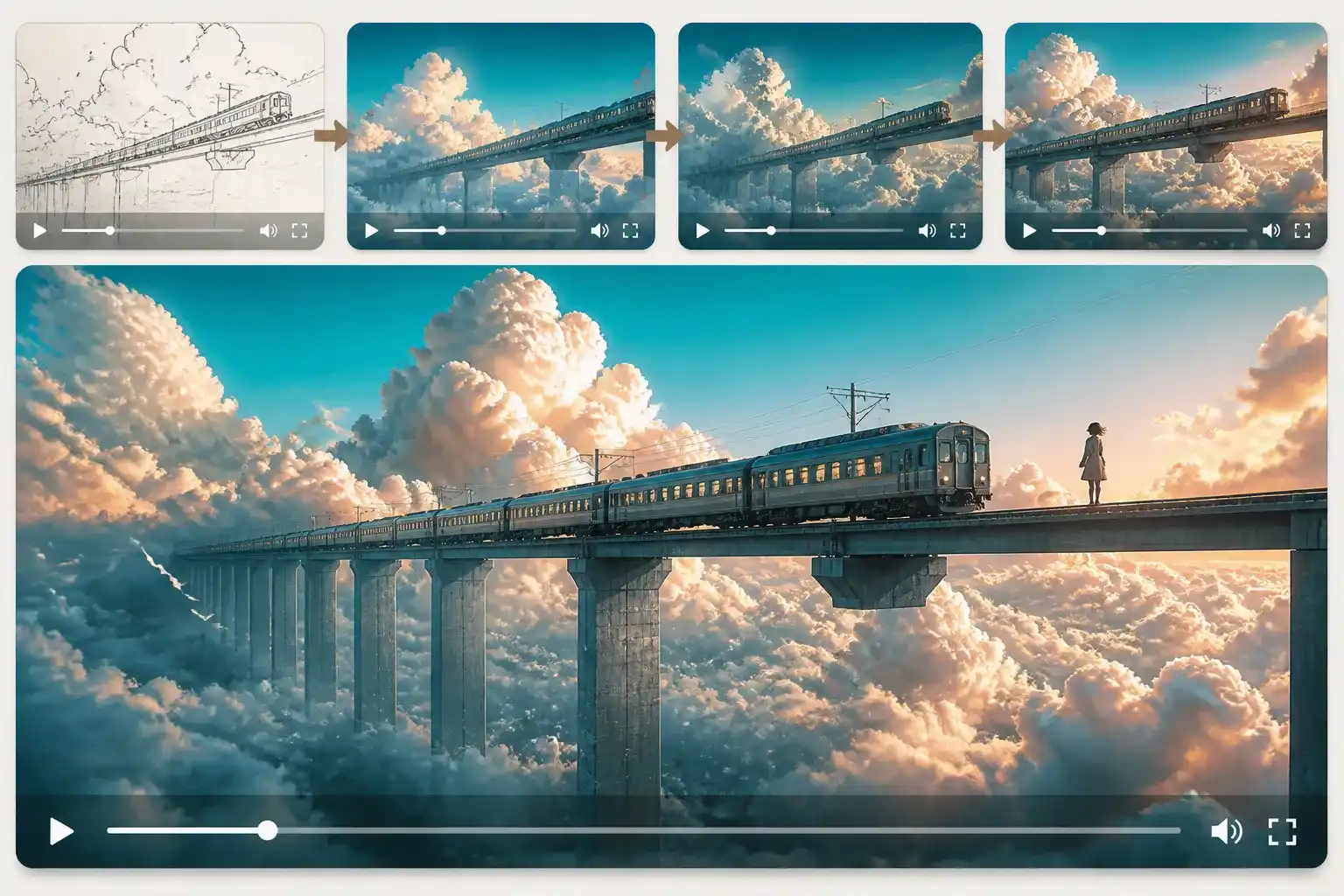
Pollo AI alternative for exploring an impossible scene for a short story

Explore an Impossible Scene for a Short Story

A writer needs to show a train crossing the sky or a library beneath the ocean. Describe the environment and one main action to generate a visual concept that communicates the setting before developing the surrounding story.

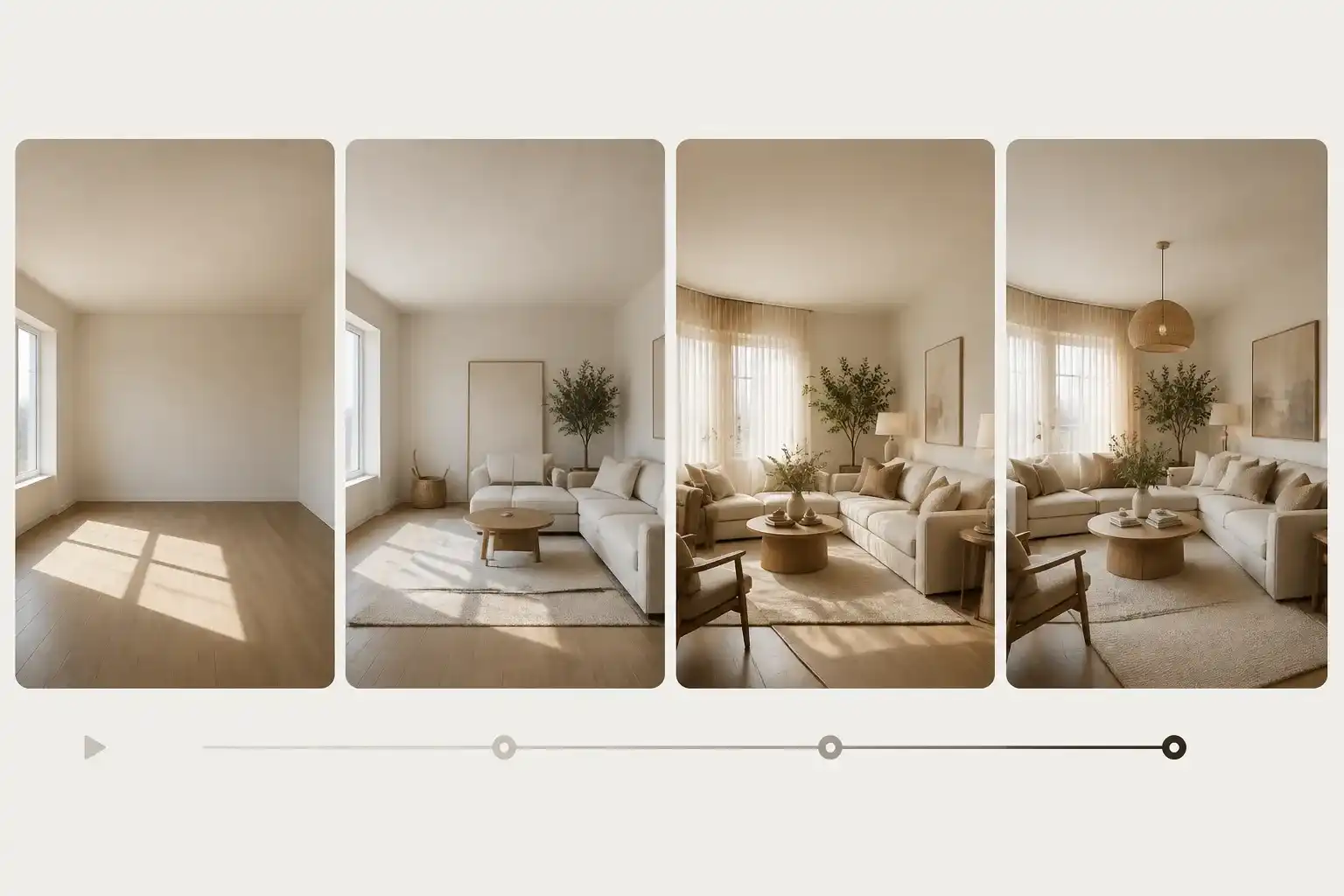
Pollo AI alternative for previewing a room transformation for a design presentation

Preview a Room Transformation for a Design Presentation

An interior designer has images of the starting space and proposed design. Use first and last frames to explore the transition between them, then review the generated movement as a visual aid for discussing the proposal.

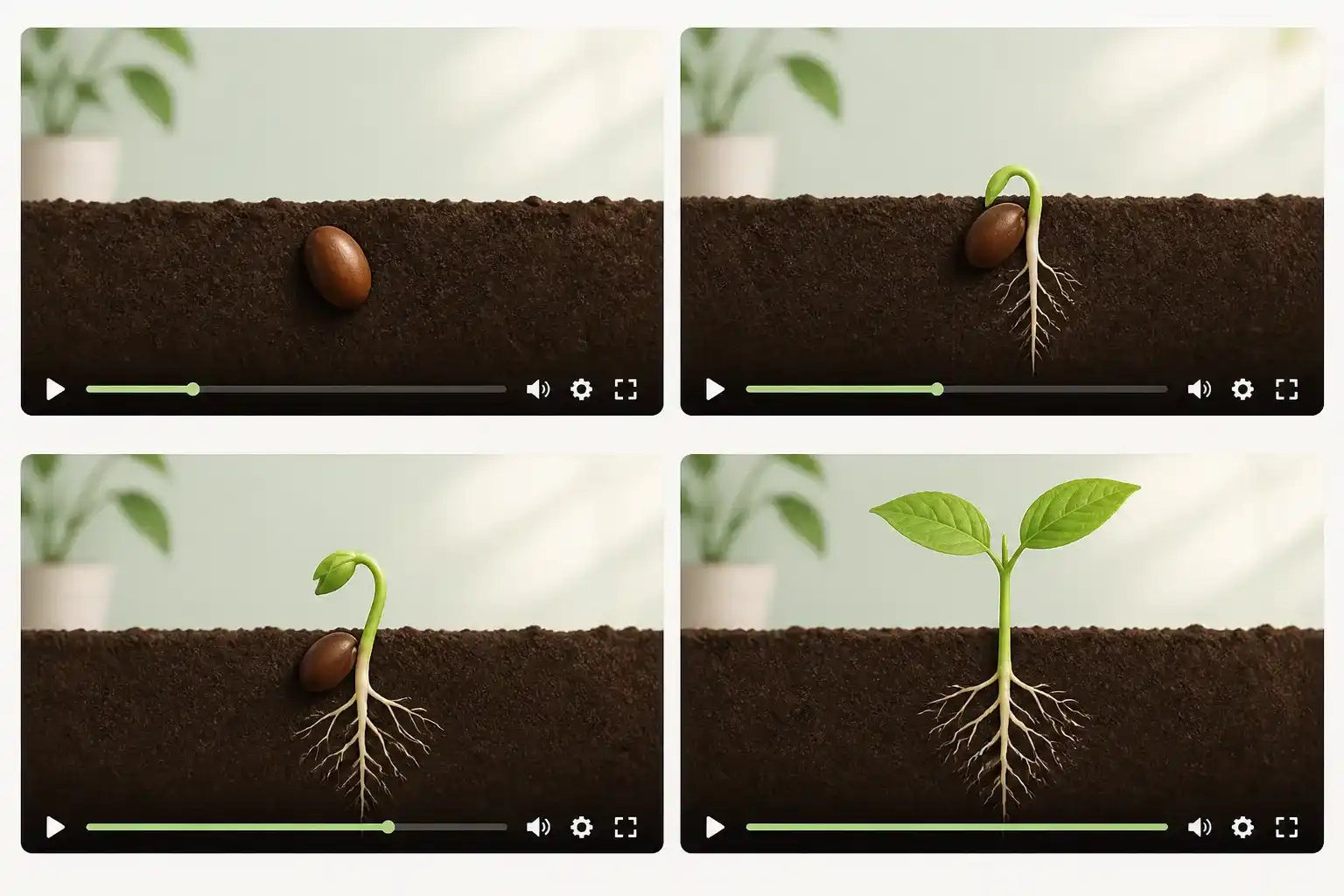
Pollo AI alternative for showing how a seed grows in a science lesson

Show How a Seed Grows in a Science Lesson

A teacher explaining plant growth can create a short animation of a seed sprouting roots and its first leaves. Check the sequence for scientific accuracy, then add labels and narration to help students follow each stage in a classroom presentation or lesson video.

Why Use PhotoEditorAI as the Pollo AI Alternative?

Create Videos from Text or Your Own Images

Start with a written idea when you have no footage, or animate a photo you already own. Text-to-video and image-to-video let you create clips for different projects without filming every scene yourself.

Explore Multiple Video Models in One Place

Choose from the video models available in the same workspace. Review their descriptions and compare results for your project without moving your source files between separate model platforms.

Guide the Result with Visual References

Use reference images to communicate the subject or look you want, or provide first and last frames to guide a transition. These options let you show the AI important visual details alongside your written instructions.

Edit Images and Create Videos on the Same Website

Prepare a source image with the image editing tools, then save it and upload it to the video workspace. You can develop the still and its animated version without finding a separate image editor.

Choose Video Settings for Your Publishing Channel

Set the available aspect ratio, duration, and resolution before generating. Whether you need a vertical social post or a landscape website clip, you can plan the output around where it will appear.

Start Creating Without Learning a Timeline Editor

Describe the scene and motion in plain language, add your source material, and generate a preview. This prompt-based workflow lets you explore a video idea before working through a detailed manual edit.

How to Use PhotoEditorAI as the Pollo AI Alternative

Choose a Creation Mode and Add Your Input

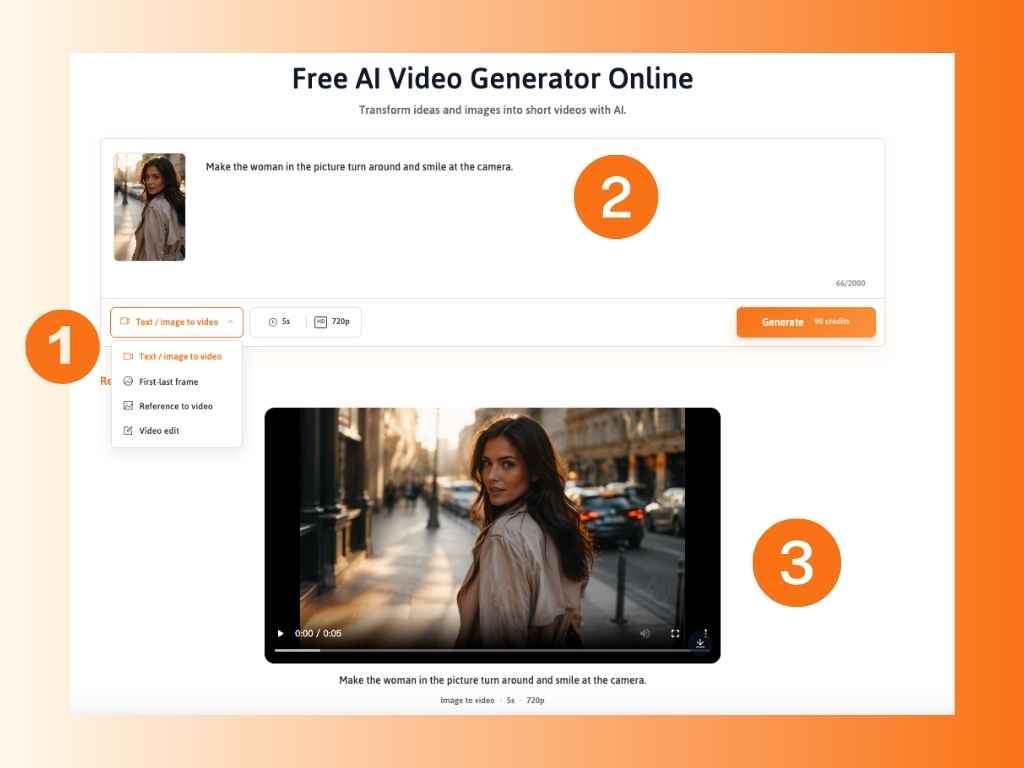
Select text-to-video, image-to-video, reference-to-video, or another available mode that matches your task. Enter the scene description, upload a starting image, or supply the frames or references required by the selected workflow.

Write Your Prompt and Set the Video Options

Describe the subject, action, camera movement, pace, atmosphere, and visual style. Choose the model and available aspect ratio, duration, and resolution, then check the credit cost for the generation you want to run.

Generate, Review, and Refine the Result

Create the clip and inspect its motion, subject details, framing, and timing. Change the prompt, source, model, or settings to explore another version when needed, then download the selected video for your project.

Three-step PhotoEditorAI video workflow as a Pollo AI alternative

Questions About This Pollo AI Alternative

What does PhotoEditorAI offer for people comparing Pollo AI alternatives?

PhotoEditorAI combines several video input modes with model selection and an image editing workspace. You can develop a source visual, animate an image, create a scene from text, or guide a video with frames and references.

Do I need to know which video model to use?

You can begin by reading the available model descriptions and comparing the displayed credit rates. Test a short, specific shot and assess its movement and detail before choosing the model for more generations.

Can I use the same prompt to compare different models?

Yes, where the models support the same input mode. Keep the source image, scene description, and available settings as similar as possible so the comparison focuses on how each model handles the shot. Results can still vary between generations.

Should I start from text or an image?

Use text when you are exploring a new environment or scene. Use an image when you already have artwork, a product photograph, or a composition you want to animate. Reference and frame-based modes provide other ways to guide the visual direction.

Can I prepare the source image before making a video?

Yes. Use the image workspace to explore the background, styling, or composition, then download the chosen image and upload it to the video workflow. Check important subject details before requesting motion.

Can I control how the camera moves?

Describe the desired camera movement in your prompt, such as a slow push toward the subject, a side-to-side move, or an orbit. The result depends on the selected model and input, so review the clip and refine the instruction when needed.

How can I guide a video with reference images?

Choose a compatible reference mode, add the images it accepts, and explain which subject details, colors, or visual elements should guide the result. Available inputs and controls depend on the selected mode and model.

Can I create vertical clips or higher-resolution videos?

The video interface includes vertical and landscape aspect ratios, alongside resolution options such as 480p, 720p, and 1080p. Select a model and mode to see which choices are available for your generation.

Can I request a creative effect through a prompt?

You can describe a transformation, visual style, or unusual scene in the prompt and use references to guide it. What the model produces may differ from a preset effect, so inspect the result and refine the instructions as needed.

How is PhotoEditorAI related to Pollo AI?

PhotoEditorAI and Pollo AI are separate services. This workflow is provided by PhotoEditorAI, with its own model availability, generation settings, and account credits.

What should I check before publishing generated videos commercially?

Make sure you own the original images, videos, artwork, and other uploaded assets or have permission to use them commercially. Do not use the tool to create violent, illegal, hateful, sexually explicit, or otherwise prohibited content.