Topview AI Video Generator Alternative Online

Create the scene you have in mind with PhotoEditorAI, the Topview alternative for turning text, photos, and visual references into custom video clips.

0/20000
No result yet

Your generated images and videos will appear here.

What Is Topview AI?

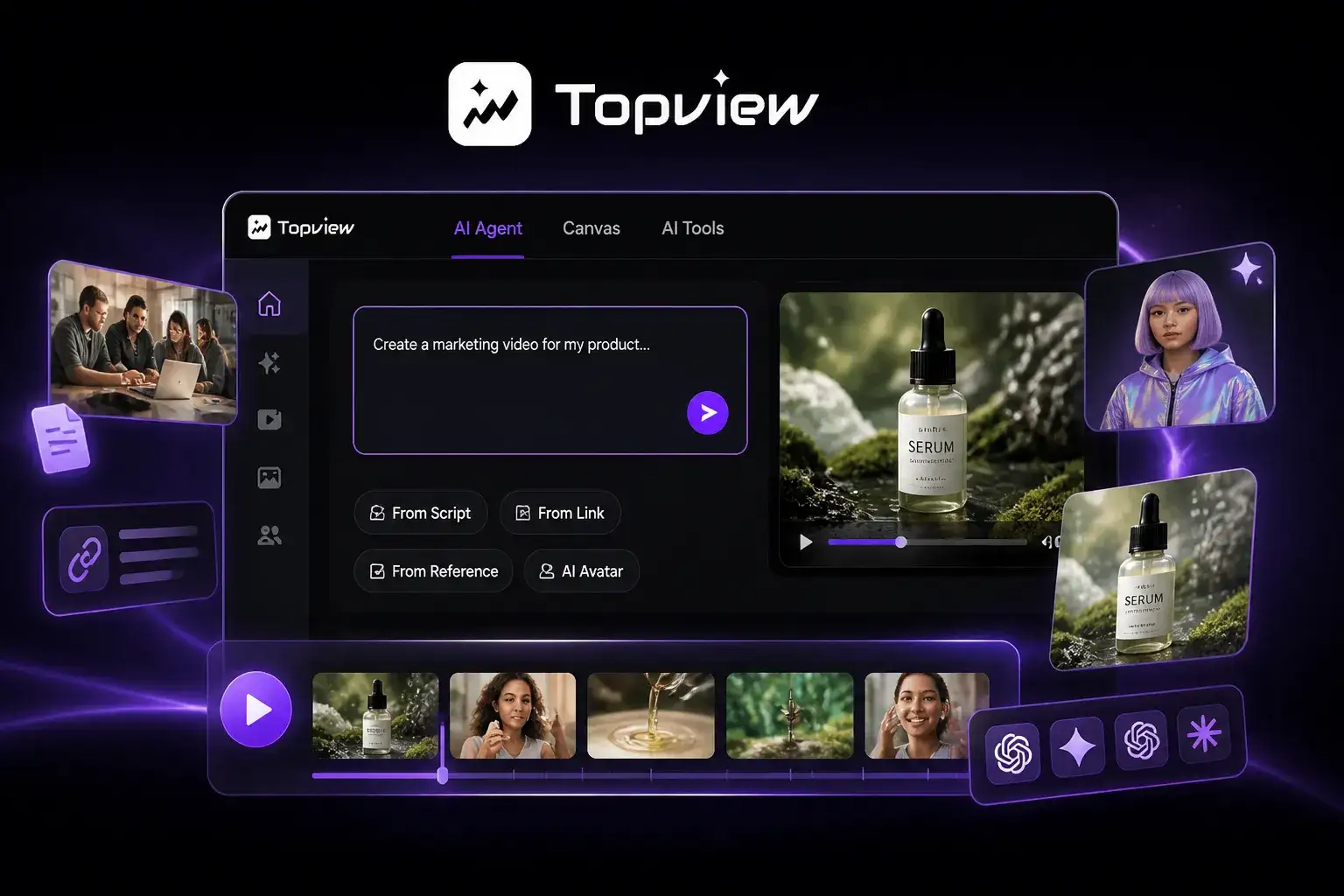
Topview AI is a video production platform with an AI Agent, Canvas, and tools for marketing videos and short films. Its website offers workflows for developing videos from scripts, reference material, and product links, alongside avatar creation and multi-model generation. PhotoEditorAI serves creators who want to direct an individual visual asset themselves: describe the shot, supply the relevant image or references, and generate footage to use in their own project.
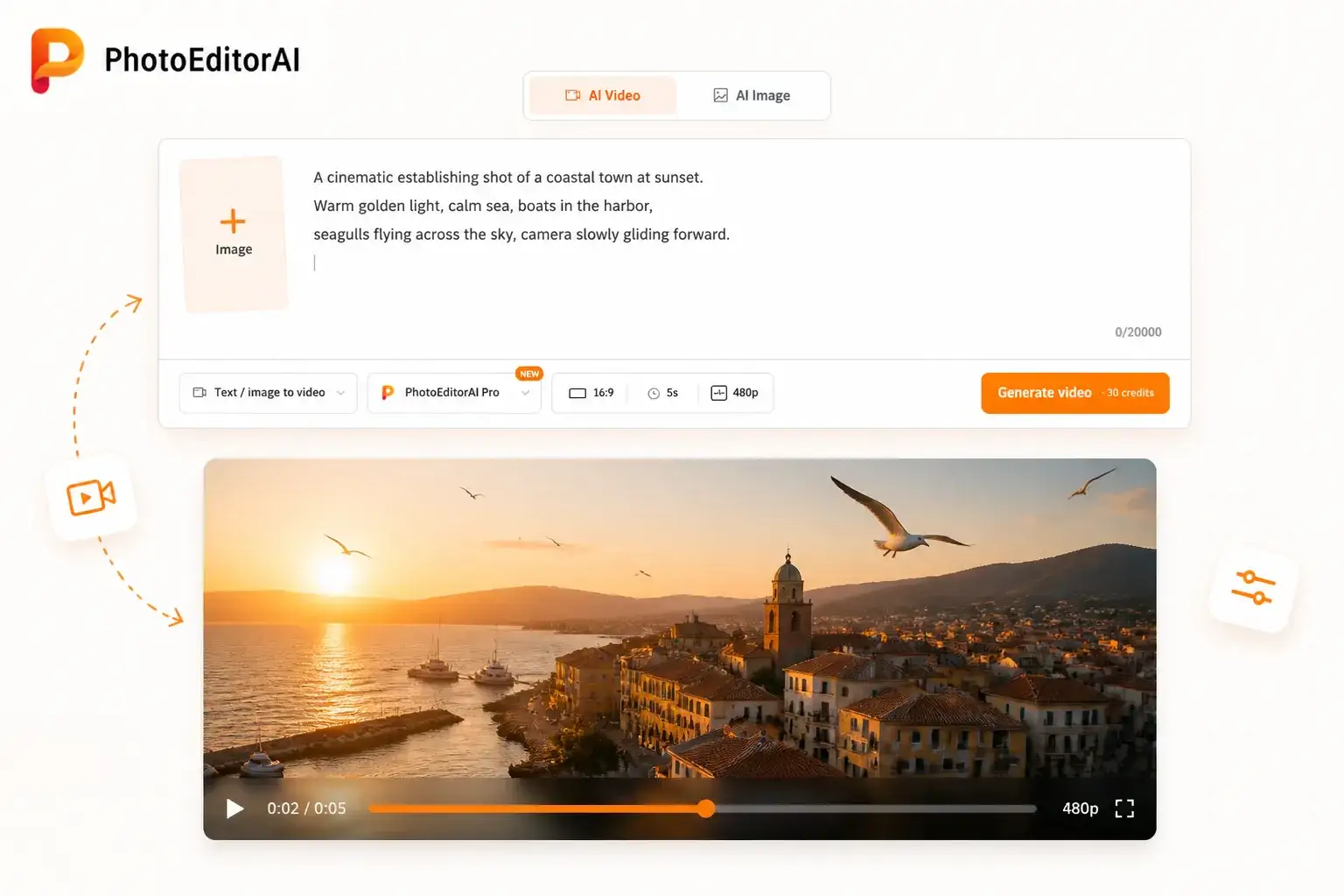
Topview AI alternative for AI video generation with model selection

Complete Your Video with the Shot You Could Not Film

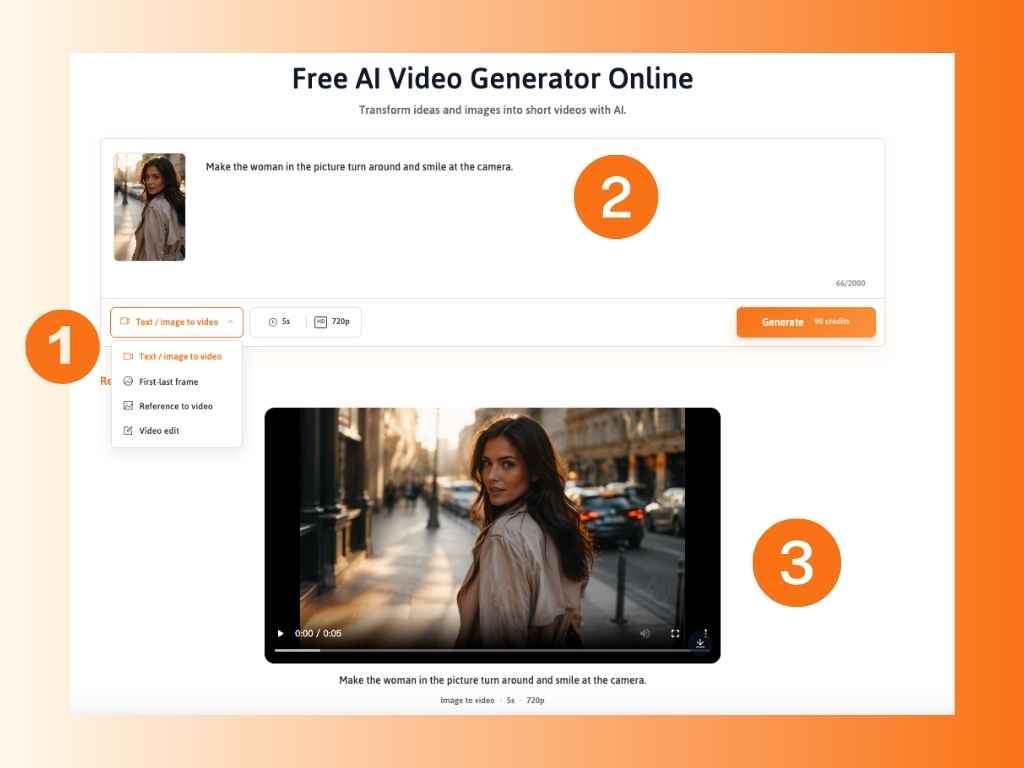
A nearly finished video can still be missing the moment that connects two parts of the story: the exterior before an interview, a location behind a travel introduction, or a scene that illustrates a spoken idea. Use PhotoEditorAI to request that specific shot through text or an uploaded image. Choose a supported generation mode, explain what happens within the frame, and select the model and output options. Where the image needs preparation, adjust the source photo before saving and uploading it for animation; the resulting clip can become one component of the edit you are already making.

PhotoEditorAI workflow for creating a missing shot and adding it to an edit

Topview AI or PhotoEditorAI: Which Workflow Fits the Brief?

Decide how much of the production you want the service to handle. Topview promotes planning and assembling broader video projects as well as focused generation tools. PhotoEditorAI provides the inputs and controls for directing the image or clip you need next.

Comparison item Topview AI PhotoEditorAI
Text-to-video Generates videos from written prompts. Create scenes from your descriptions, with model selection and output settings in the same workflow.
Image-to-video Animates uploaded images. Turn product photos, portraits, and artwork into clips with the movement you describe.
Model selection Offers multiple AI models within its platform. Choose from a broader selection of image and video models, with descriptions and credit rates shown before generation.
Visual guidance Supports reference-based video creation. Guide the subject, appearance, or transition with reference images or first and last frames.
Image preparation Includes image generation and editing tools. Adjust backgrounds, composition, or styling, then use the edited image as your video input.
Video settings Available controls depend on the selected model and tool. Choose the supported aspect ratio, duration, and resolution for your publishing channel.
Creative revisions Provides tools for revising generated content. Refine the prompt, source image, model, or settings to explore different results.
Download and use Offers generation and further production workflows. Generate, preview, and download clips for ads, websites, social posts, and video projects.

What You Can Create with This Topview Alternative

Topview alternative for opening a guesthouse video with an exterior shot

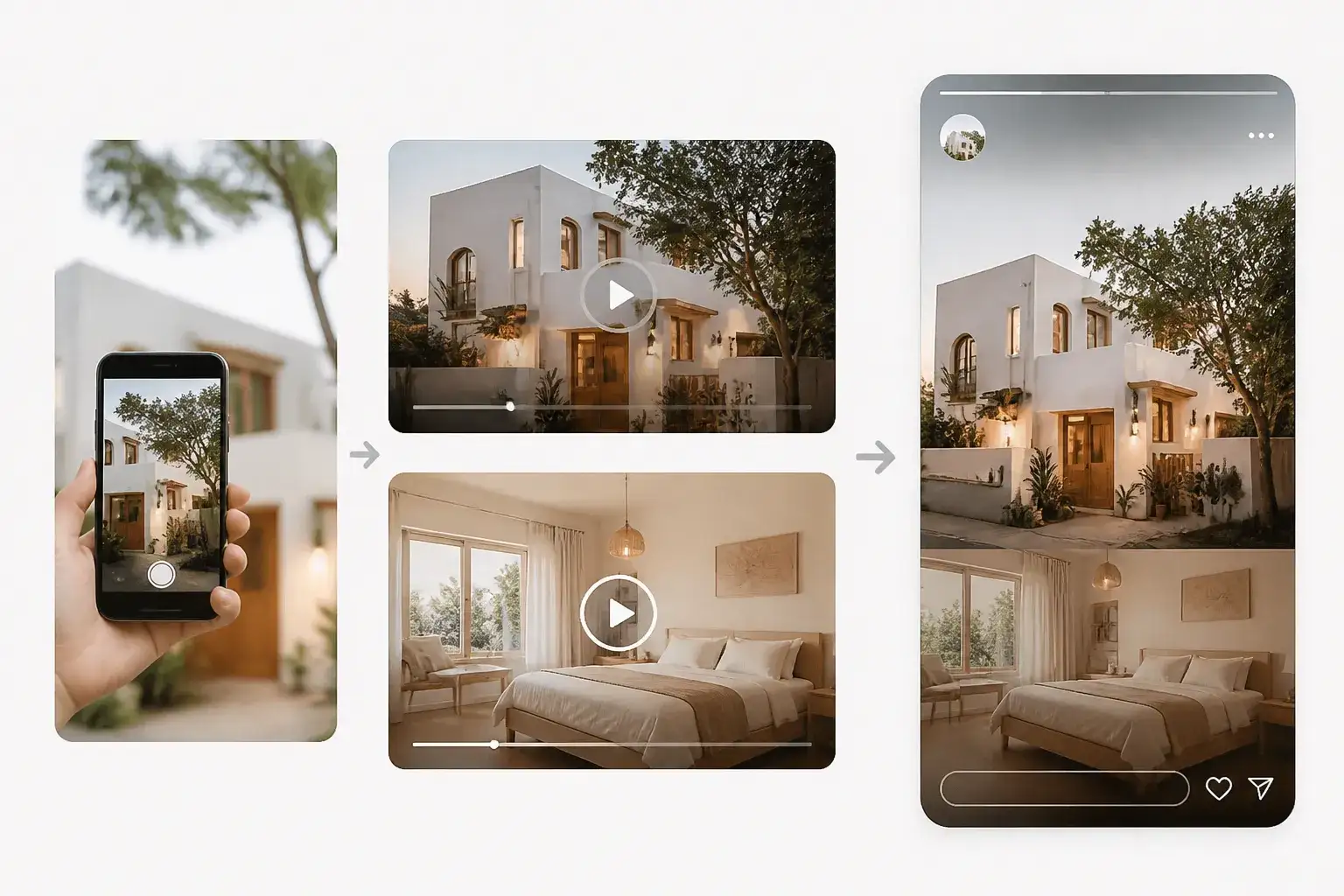
Open a Guesthouse Video with Its Actual Setting

A guesthouse owner has room footage but no moving exterior shot. Upload a clear photograph of the building and request a restrained camera approach. Review the architecture and surroundings against the original before placing the clip ahead of the room tour.

Topview alternative for turning a skincare product photo into a promotional video

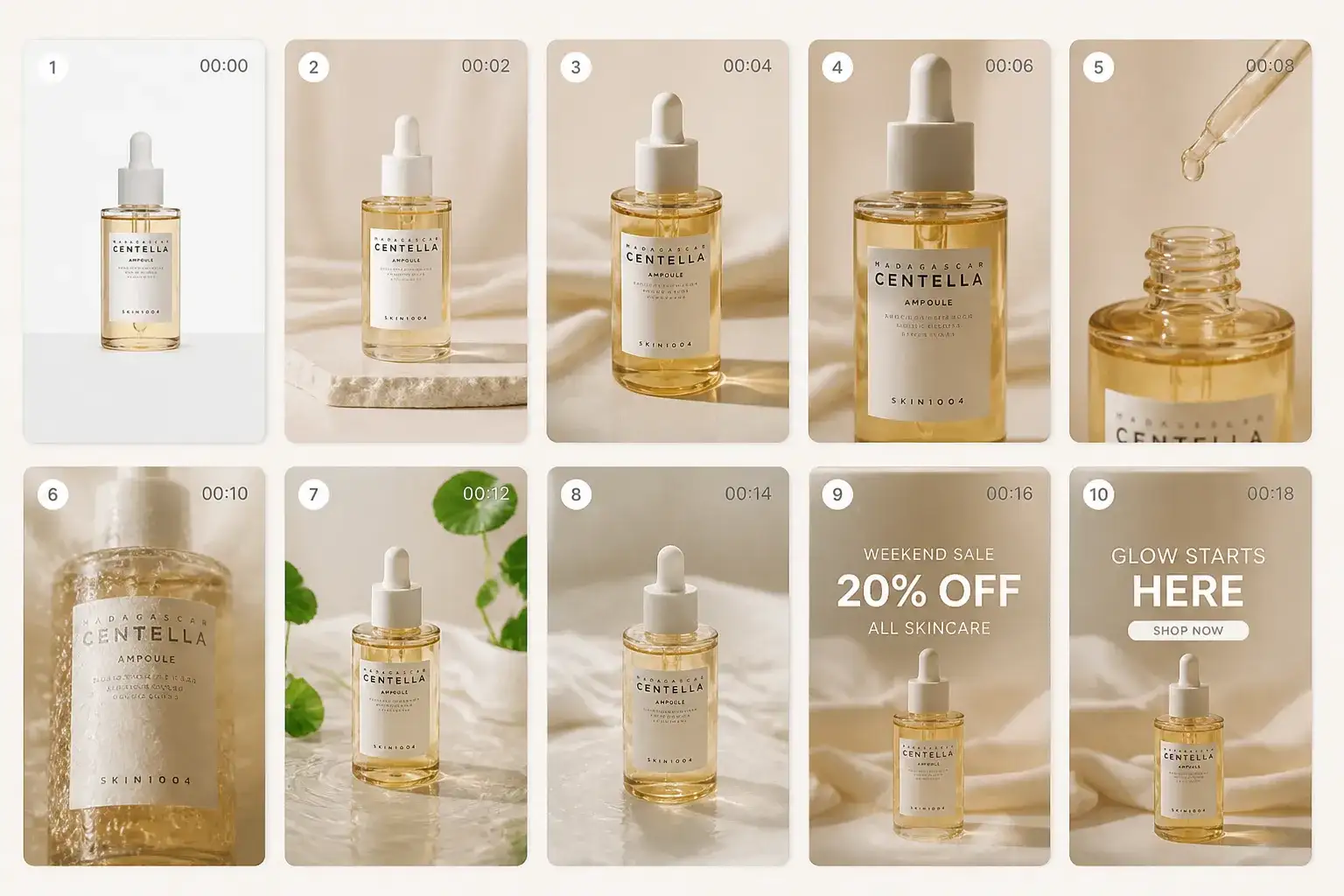
Turn a Skincare Product Photo into a Promotional Video

A skincare brand needs a short video for its weekend sale but only has product photos. Upload a serum bottle image and request a slow camera move with soft lighting, then add the offer and call to action in the final edit for an Instagram or TikTok ad.

Topview alternative for illustrating a podcast story on screen

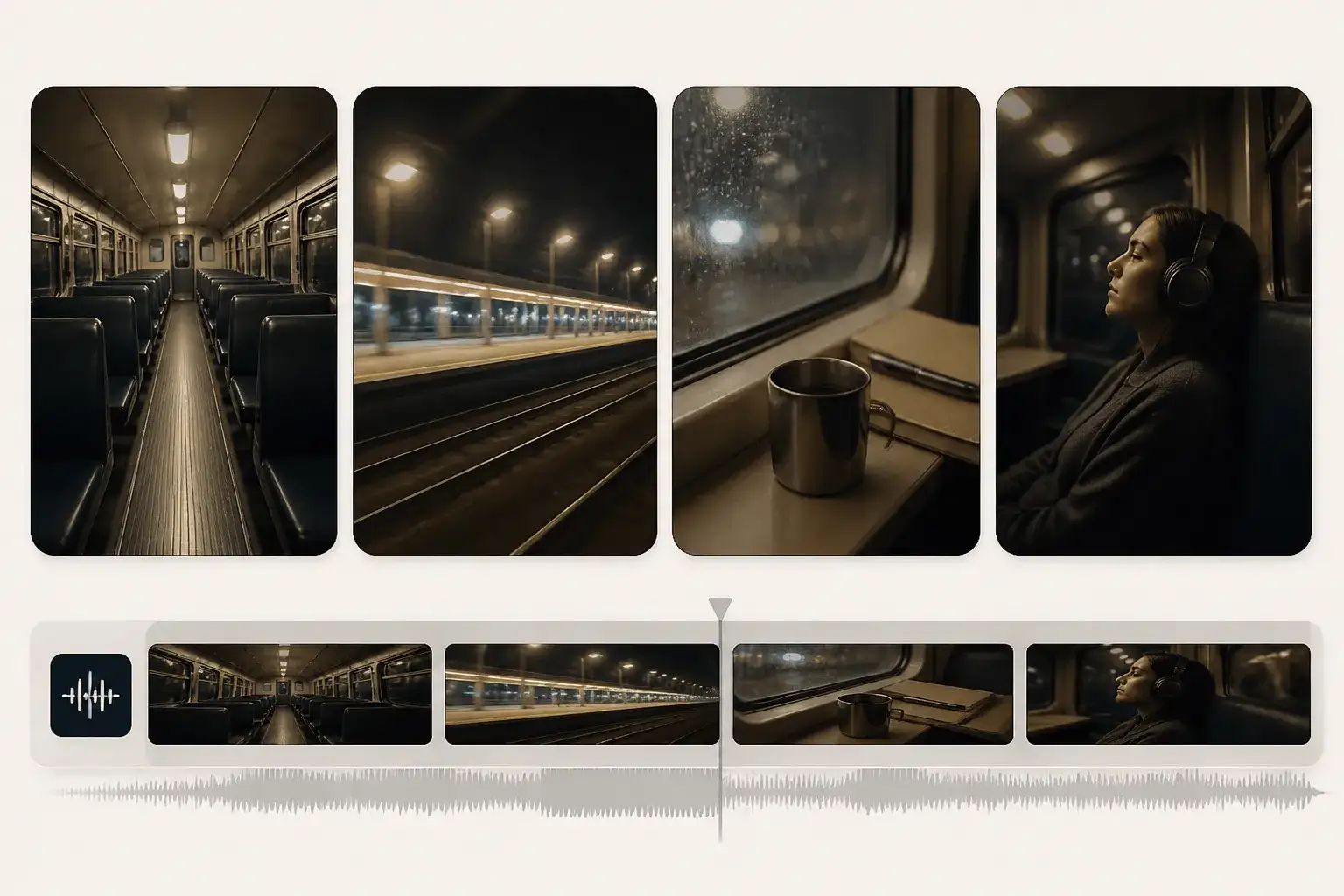
Give a Podcast Story a Place on Screen

A podcast editor is turning an audio segment about a late-night train journey into video. Describe an empty carriage, passing station lights, and the intended mood to create an illustrative cutaway while the original conversation continues.

Topview alternative for setting the atmosphere of an indie game announcement

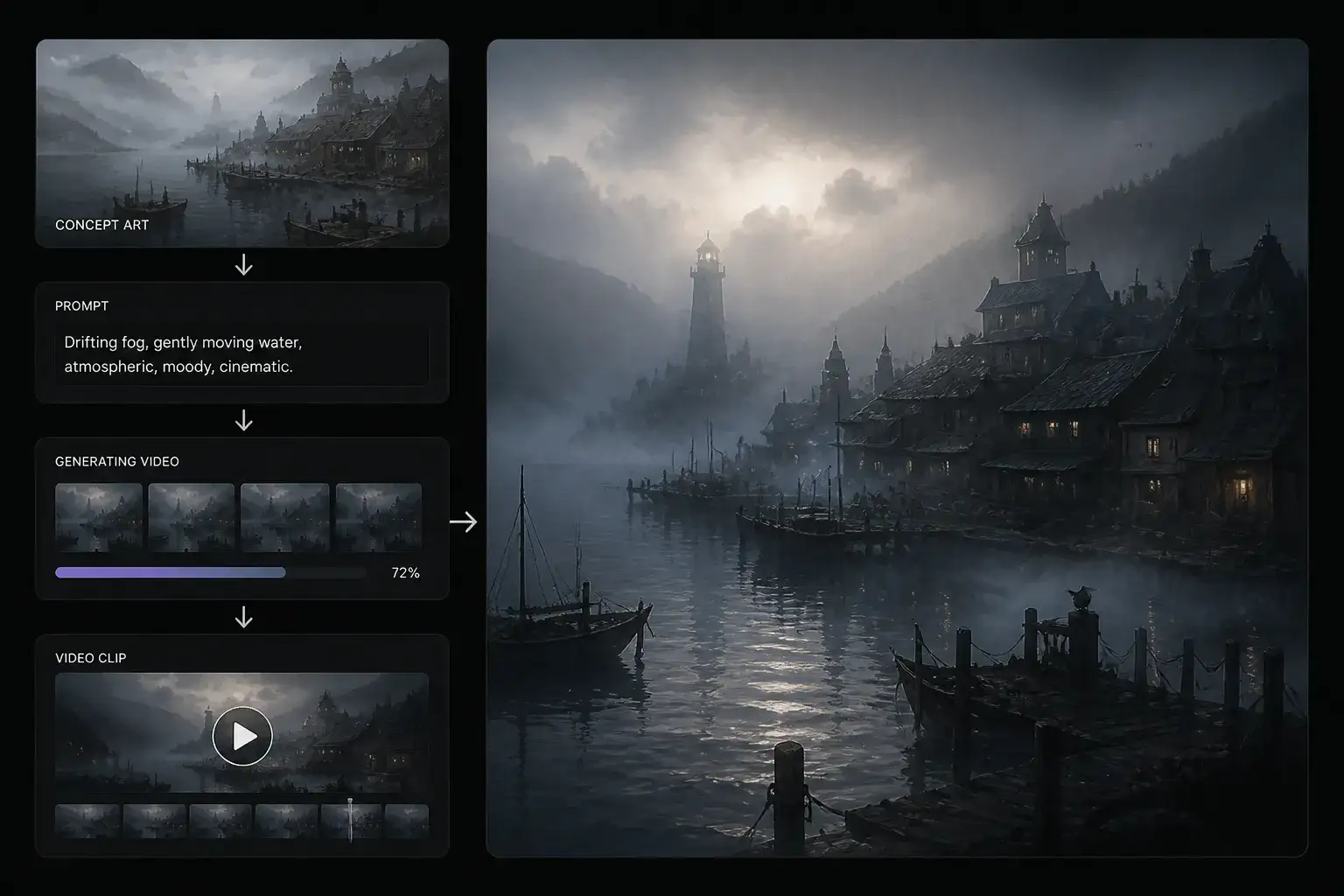
Set the Atmosphere for an Indie Game Announcement

A developer has concept art of a misty harbor and needs a visual for the game's announcement. Request drifting fog and gently moving water from that artwork, then use the selected clip to establish the setting in a teaser. Present it as promotional artwork rather than gameplay footage.

Topview alternative for introducing a fitness studio with an interior shot

Introduce a Fitness Studio with a Quiet Interior Shot

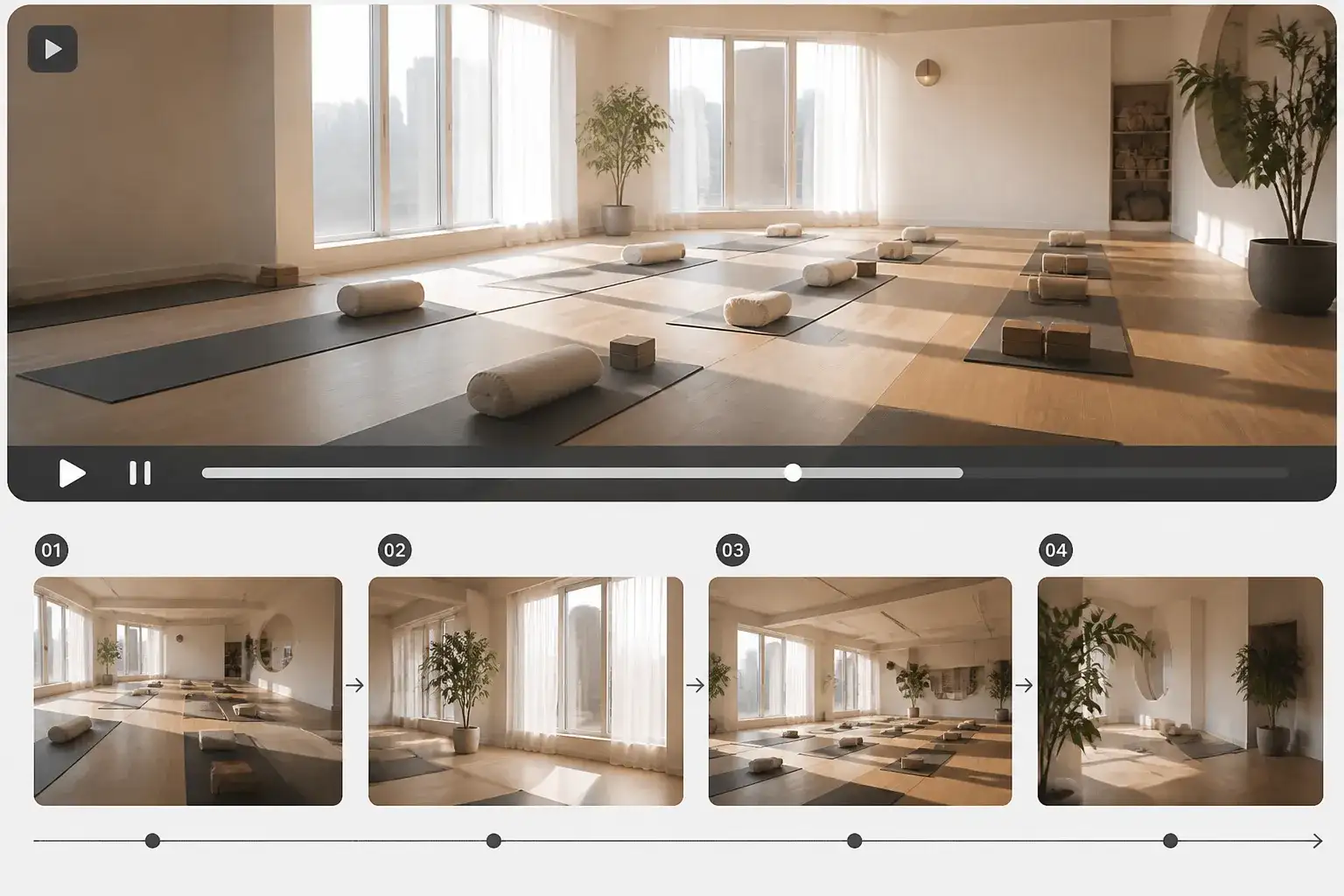
A studio owner has a filmed class introduction and wants to show the space first. Use a photograph of the empty room to explore a gentle camera move across the mats and windows, checking that the generated details still represent the real studio.

Topview alternative for showing furniture details between recorded demonstrations

Show Furniture Details Between Recorded Demonstrations

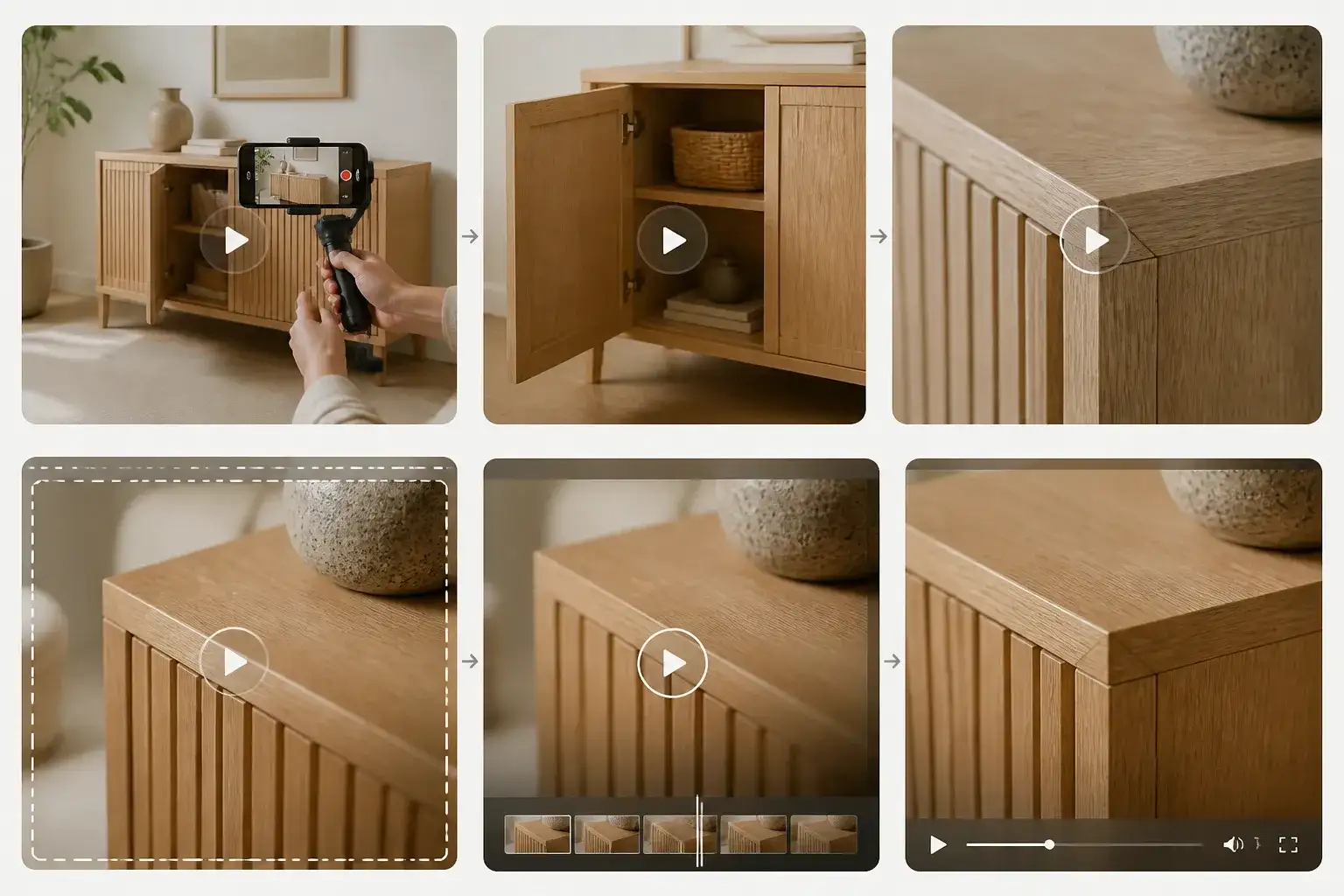
A furniture maker has filmed how a cabinet opens but needs a closer view of its finish. Animate an approved detail photograph with a small camera movement, then inspect the grain, fittings, and edges before including it in the product video.

Why Choose PhotoEditorAI as Your Topview Alternative?

Request the Specific Piece Your Edit Is Missing

If the narration, main footage, and sequence are already decided, you can generate a supporting scene on its own. Download the chosen result and place it where your project needs an introduction, cutaway, or visual pause.

Make the Generation Decisions Yourself

The video controls let you choose the mode and model for the request. Your instructions determine the intended action, and the available settings define the clip's format, giving you a concrete starting point for each revision.

Show a Real Place Through a Photograph You Select

For a venue or property, an uploaded image gives the generation a specific visual starting point. You can ask for a limited movement around that scene, then check the output against the source before approving it.

Illustrate an Idea When No Footage Exists

Some spoken stories describe scenes you cannot visit or record. Text-based generation lets you commission an illustrative moment from a description, so the edit can include more than a speaker and static title cards.

Create Product Videos Without a New Shoot

Turn existing product photos into short promotional clips without arranging a new filming session. PhotoEditorAI lets you test video ideas for ads or product pages before committing to a larger production.

Keep Finishing in the Workflow You Already Know

The downloaded shot can sit beside recorded footage, narration, graphics, and music in your existing edit. You decide where it belongs in the sequence and how it should connect with the rest of the video.

Three Steps to Create Your Shot with PhotoEditorAI

Upload Images or Describe Your Scene

Upload the image you want to animate, or describe the scene you want to create. Use a product photo, portrait, or other image as the starting point, or begin with a written idea.

Build and Run the Shot Request

Explain what the subject and camera should do, including the pace, lighting, and intended visual treatment. Select a compatible model, set the available frame ratio, length, and resolution, check the displayed credit cost, and generate the clip.

Review the Footage in Context

Watch the result beside the material it will accompany. If the scene feels out of place, revise the input or instructions and generate another version; download the chosen clip once its content and timing work for your edit.

Three-step PhotoEditorAI workflow for creating a single shot as a Topview alternative

Questions About Making Videos with This Topview Alternative

What kind of project is this workflow useful for?

It suits a project where you know the particular visual you need: an opening location shot, an illustrative insert, or a brief view of a product detail. You direct that generation and decide how to include the result in the larger video.

Does PhotoEditorAI turn a product-page link into a finished ad?

The workflow described here starts from scene instructions and visual assets. To work with a real product, supply suitable product images and write the shot brief. Topview advertises a separate link-to-video capability if automatic product-page processing is part of your requirements.

How much should happen within a single request?

Begin with one visible action and a clear camera instruction, such as a slow approach to a doorway. Once that shot works, create the next one separately. This makes the result easier to judge against a specific purpose in the edit.

Can I show an actual building or business interior?

Use a photograph you are authorized to upload and specify a modest movement. Inspect the output for changed architecture, furnishings, signage, and surroundings before using it to represent a real location.

How do I make the clip work with narration I already recorded?

Choose a scene that corresponds to one part of the narration, then select a suitable duration from the options available. After generation, trim and position the clip in your editor so the relevant action appears with the words it supports.

What if the movement feels too busy for the edit?

Request less subject movement, a steadier camera, or a slower pace. You can revise the source and prompt for another generation, then compare how each version feels alongside the main footage.

Can I specify both the opening and closing image?

First-last frame mode supports visual input for both ends of the shot. Add the images required by that mode and explain the movement between them, then inspect the generated transition rather than assuming every detail will follow the inputs exactly.

Should a synthetic scene be presented as recorded footage?

For travel, property, reporting, or other factual content, check that the visuals support an accurate account. Make the illustrative nature clear where viewers could otherwise mistake a generated scene for a recording of a real event or place.

How can I find out what a shot will cost to generate?

After choosing the mode, model, and settings, review the credit amount displayed for the task. Make that check again if you change the parameters or request another version.

Can I carry my Topview projects or credits into PhotoEditorAI?

These are separate services, so do not assume that projects, subscriptions, or credit balances transfer. Prepare the source files you have permission to use and create the new generation request in PhotoEditorAI.

What rights and content restrictions should I consider?

Only upload material you own or are licensed to use for the intended purpose, including commercial use when relevant. Generated content must also respect applicable rules; do not create violent, hateful, sexually explicit, illegal, or other prohibited material.